Why Does a Laptop Overheat?
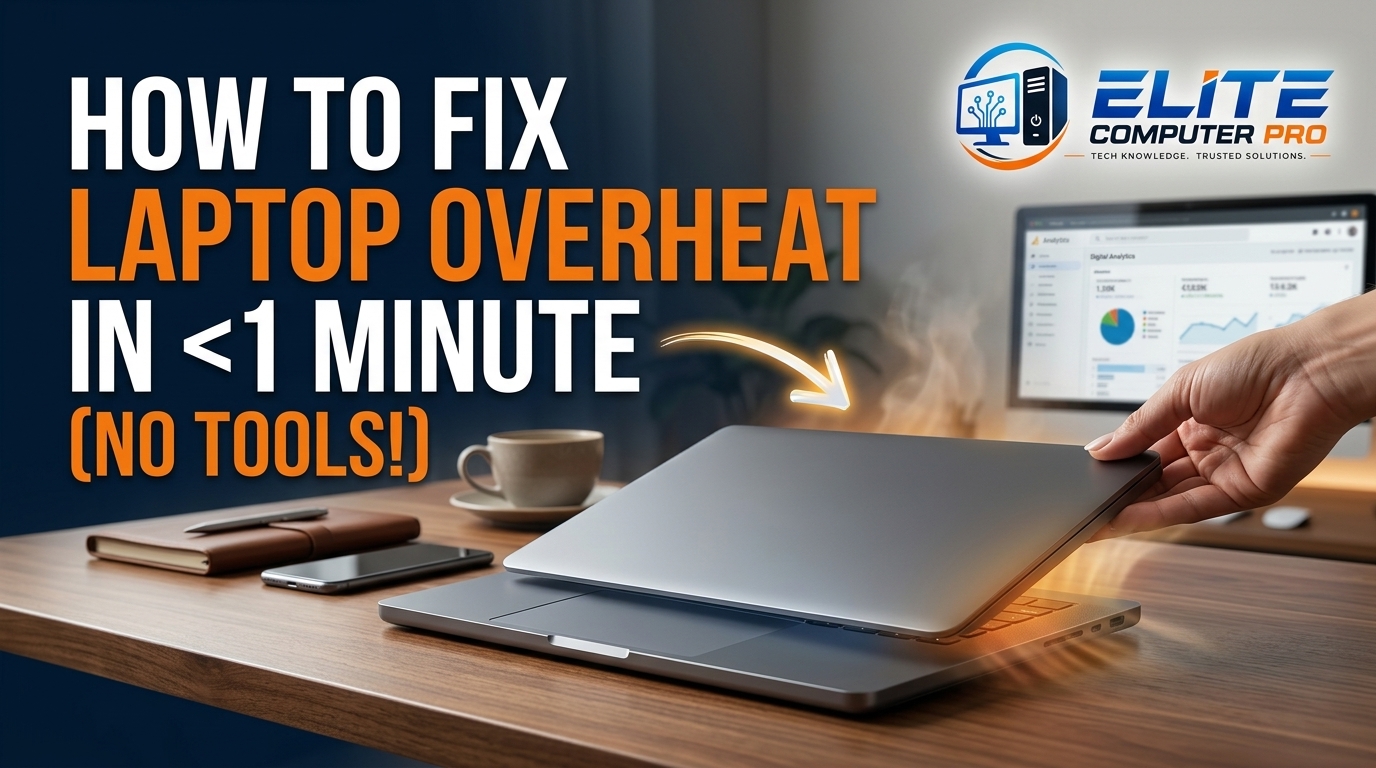
Laptop overheating is one of the most common problems users face. It affects gaming laptops, office laptops, student laptops, and even high end machines. The good news is that most overheating problems can be fixed with simple methods at home.
A few months ago, I was working on a project while watching YouTube videos after about an hour, I noticed my laptop getting unusually hot. The fan became loud, the keyboard felt warm, and the system started lagging badly. A few minutes later, the laptop suddenly shut down.
At first, I thought the battery was damaged or the laptop was getting old. But after testing different solutions, cleaning the vents, and changing some settings, I realized the real issue was overheating.
This guide explains how to fix laptop overheat problems using practical tips;
Every laptop generates heat while running. The CPU, GPU, battery, and other internal parts create heat during use. Normally, the cooling system removes this heat through fans and vents. The problem starts when airflow becomes blocked or the system works too hard.
Common causes of laptop overheating include:
- Dust inside cooling vents
- Using the laptop on a bed or pillow
- Heavy gaming or video editing
- Too many apps running together
- Poor airflow around the laptop
- Old thermal paste
- Broken cooling fans
- High room temperature
Table of Contents
Signs Your Laptop Is Overheating
Many laptops show warning signs before serious overheating happens.
Watch for these symptoms:
- Loud fan noise
- Laptop becoming extremely hot
- Slow performance
- Sudden shutdowns
- Lag during gaming
- Keyboard heating up
- Screen freezing
- Fast battery drain
If ignored for too long, overheating can damage internal components and reduce laptop lifespan.
How to Fix Laptop Overheat Quickly
Place the Laptop on a Hard Surface
One of the biggest mistakes people make is using laptops on beds or cushions. Soft surfaces block airflow underneath the laptop. Most laptops pull cool air from bottom vents, so blocked airflow traps heat inside.
Use your laptop on:
- A desk
- Wooden table
- Laptop stand
- Cooling pad
- Flat surface
This simple change can lower temperatures quickly.
Clean the Laptop Vents and Fans
Dust buildup is a major reason laptops overheat. Over time, dust blocks airflow inside the cooling system. Even a small amount of dust can make fans less effective.
How to Clean Your Laptop Safely
- Turn off the laptop
- Disconnect the charger
- Use compressed air near vents
- Remove visible dust gently
- Let airflow clear internal particles
Avoid using water or sharp objects.
I once cleaned an old laptop that had years of dust inside the fan. After cleaning it properly, the temperature dropped noticeably and the fan noise became quieter.
Use a Laptop Cooling Pad
Cooling pads can help reduce laptop heat during long work sessions or gaming. These pads include built-in fans that improve airflow underneath the laptop.
Benefits of Laptop Cooling Pads
- Better ventilation
- Lower temperatures
- Reduced fan stress
- Improved gaming stability
- More comfortable typing
Popular cooling pad brands include:
- Cooler Master
- KLIM
- Havit
- TopMate
Even budget cooling pads can improve airflow significantly.
Reduce Laptop Heat Through Power Settings
Simple power setting changes can help cool down your laptop.
Switch to Power Saver Mode
On Windows:
- Open Control Panel
- Go to Power Options
- Select “Power Saver”
This reduces CPU power usage and lowers heat generation.
Lower Screen Brightness
High brightness levels increase power consumption and create extra heat. Reducing brightness slightly can help keep temperatures lower while also improving battery life.
Change Maximum Processor State
This trick works surprisingly well for overheating laptops.
Steps to Reduce CPU Heat
- Open Power Options
- Click Advanced Settings
- Open Processor Power Management
- Set Maximum Processor State to 90% or 95%
This prevents the processor from constantly running at full speed. When I tested this on an overheating laptop, temperatures dropped quickly without affecting normal performance much.
Close Unnecessary Background Apps
Many apps continue running silently in the background and increase CPU usage. This extra workload creates more heat.
How to Check Background Processes
Press: Ctrl + Shift + Esc, This opens Task Manager on Windows.
Look for programs using high:
- CPU
- RAM
- Disk usage
Close apps you are not using.
Keep Your Laptop in a Cooler Environment
Room temperature affects laptop cooling more than people realize. Using a laptop in a hot room makes it harder for the cooling system to remove heat.
Tips for Better Cooling Environment
- Avoid direct sunlight
- Use fans or air conditioning
- Keep windows open for airflow
- Avoid using laptops inside cars
- Keep the laptop away from blankets
During summer, I noticed my laptop temperatures increased much faster compared to winter months.
Use Software to Monitor Laptop Temperature
Temperature monitoring tools help you track overheating problems before they become dangerous.
Useful Laptop Temperature Software
HWMonitor
Shows CPU and GPU temperatures in real time.
Core Temp
Simple tool for monitoring processor heat.
SpeedFan
Allows manual fan control on some laptops.
MSI Afterburner
Useful for gaming laptops and GPU monitoring.
These tools help identify temperature spikes during heavy workloads.
Check Whether the Cooling Fan Is Working
A damaged cooling fan can cause serious overheating.
Signs of a Bad Laptop Fan
- No fan sound
- Weak airflow
- Grinding noises
- Sudden shutdowns
- High temperatures during light use
If the fan is faulty, replacement may be necessary. Some fans are easy to replace, while others require professional repair.
Replace Old Thermal Paste
Thermal paste helps transfer heat from the CPU and GPU to the heatsink. Over time, thermal paste dries out and becomes less effective.
Signs Thermal Paste Needs Replacement
- High temperatures during normal use
- Constant loud fan noise
- Laptop overheating after years of use
- Sudden temperature spikes
Popular thermal paste brands include:
- Arctic MX-4
- Thermal Grizzly
- Noctua NT-H1
If you are uncomfortable opening your laptop, it is safer to visit a technician.
Does Gaming Cause Laptop Overheating?
Yes, gaming is one of the biggest causes of laptop overheating. Modern games push the CPU and GPU very hard, creating large amounts of heat.
Tips to Reduce Gaming Laptop Heat
- Lower graphics settings
- Limit frame rates
- Use a cooling pad
- Keep vents clean
- Avoid gaming on beds
- Improve room airflow
Gaming laptops naturally run hotter, but temperatures should still remain within safe limits.
Can Video Editing Overheat a Laptop?
Absolutely, Programs like:
- Adobe Premiere Pro
- DaVinci Resolve
- Blender
- OBS Studio
These apps use heavy processing power for long periods. Long editing sessions can increase temperatures significantly. I once rendered a long 4K video and noticed the laptop heating quickly because the rear vents were partially blocked.
Does More RAM Help Reduce Laptop Heat?
Adding more RAM does not directly cool the laptop, but it can improve performance.
When a laptop lacks RAM, the processor works harder to manage memory tasks. This extra workload can increase temperatures.
More RAM helps the system run smoother and reduces stress on the CPU.
Does Using an External Monitor Increase Heat?
Using an external monitor itself does not directly overheat the laptop.
However, the GPU may work harder to handle larger displays or multiple screens, especially during gaming or editing.
Always ensure proper airflow when using external monitors.
Elevate the Laptop for Better Airflow
Laptop stands can improve cooling by increasing airflow underneath.
Even slightly raising the back of the laptop helps heat escape faster.
Good Options for Elevation
- Laptop stands
- Adjustable risers
- Cooling pads
- Rubber laptop feet
This also improves typing comfort and posture.
Common Mistakes That Make Laptop Overheating Worse
Blocking Air Vents
Never cover laptop vents during use.
Using the Laptop on Blankets
Blankets trap heat instantly.
Ignoring Dust
Dust slowly blocks airflow and reduces cooling efficiency.
Running Too Many Programs
Too many apps increase CPU usage and heat.
Never Restarting the Laptop
Restarting clears temporary system strain and improves performance.
Best Daily Habits to Prevent Laptop Overheating
Prevention is always easier than repair.
Smart Cooling Habits
- Clean vents regularly
- Use hard surfaces
- Keep apps updated
- Monitor temperatures
- Use cooling accessories
- Close unused programs
- Avoid direct sunlight
These habits help extend laptop lifespan and improve performance.
Real Life Laptop Cooling Setup That Worked for Me
After dealing with overheating for months, I finally changed my setup completely.
I started using:
- A laptop stand
- A USB cooling pad
- Better room airflow
- Lower CPU power settings
- Temperature monitoring software
The difference was huge.
The laptop became quieter, temperatures stayed stable, and sudden shutdowns stopped completely.
Sometimes small adjustments solve major overheating problems.
Frequently Asked Questions
How do I fix laptop overheat problems fast?
Move the laptop to a hard surface, clean the vents, close unnecessary apps, and improve airflow around the system.
Can overheating damage a laptop?
Yes. Excessive heat can damage the CPU, GPU, battery, and motherboard over time.
Do cooling pads really work?
Yes. Cooling pads improve airflow and help reduce temperatures, especially during gaming or heavy workloads.
Why is my laptop fan so loud?
A loud fan usually means the laptop is overheating or struggling to remove heat.
Can dust cause overheating?
Yes. Dust blocks airflow and prevents fans from cooling properly.
Should I shut down an overheating laptop?
Yes. If the laptop becomes extremely hot or starts lagging badly, turn it off and let it cool down.
What temperature is dangerous for a laptop?
Most laptops should stay below 85–90°C during heavy use.
Does using a laptop on a bed cause overheating?
Yes. Beds and blankets block airflow underneath the laptop.
Can replacing thermal paste fix overheating?
Yes. Fresh thermal paste improves heat transfer and reduces temperatures.
Which software checks laptop temperature?
Popular tools include:
- HWMonitor
- Core Temp
- SpeedFan
- MSI Afterburner
Conclusion
Laptop overheating is frustrating, especially when your system becomes slow, noisy, or shuts down unexpectedly. I learned from personal experience that small habits like blocking vents or ignoring dust buildup can create serious heating problems over time.
The good news is that most overheating issues are fixable without replacing the laptop. Simple solutions like cleaning the vents, improving airflow, changing power settings, and using cooling accessories can dramatically reduce temperatures and improve performance.
If your laptop still overheats after trying these methods, it may be time to check the cooling fan or replace the thermal paste with professional help.
A cooler laptop runs smoother, lasts longer, and feels much better to use every day.
Related: