Introduction
This guide covers the best Windows tips and tricks for beginners and advanced users alike. You will learn practical methods to improve PC performance, boost productivity, protect your files, and customize your system without needing technical knowledge.
Windows computers come with many useful features that most people never fully explore. Whether you use your PC for work, study, gaming, or browsing, learning a few smart Windows tips can make your computer faster, safer, and easier to use.
Many users only use the basic functions of Windows and ignore built-in tools that can save time every day. Small changes like organizing startup apps, using keyboard shortcuts, enabling security features, or improving storage management can create a much smoother experience.
If you want your Windows computer to work better and last longer, these tips will help you get started immediately.
Table of Contents
Why Learning Windows Tips Matters
A slow or poorly configured computer can waste hours every week. Many common Windows problems happen because users are unaware of simple built-in solutions. Good Windows habits can help you:
- Improve system speed
- Increase battery life
- Keep files organized
- Reduce system crashes
- Protect personal data
- Work more efficiently
- Enjoy smoother gaming and browsing
Latest versions like Windows 11 and Windows 10 include powerful features that are easy to use once you know where to find them.
Best Windows Tips to Make Your PC Faster
Disable Unnecessary Startup Programs
One of the easiest ways to improve boot speed is disabling apps that launch automatically when Windows starts.
Step-by-Step Guide
- Press
Ctrl + Shift + Esc - Open the Startup Apps tab
- Check programs with high startup impact
- Disable apps you do not need
Common apps that slow startup include:
- Game launchers
- Chat software
- Auto-sync tools
- Background update services
Be careful not to disable important security software.
>>>> Read Also <<<<
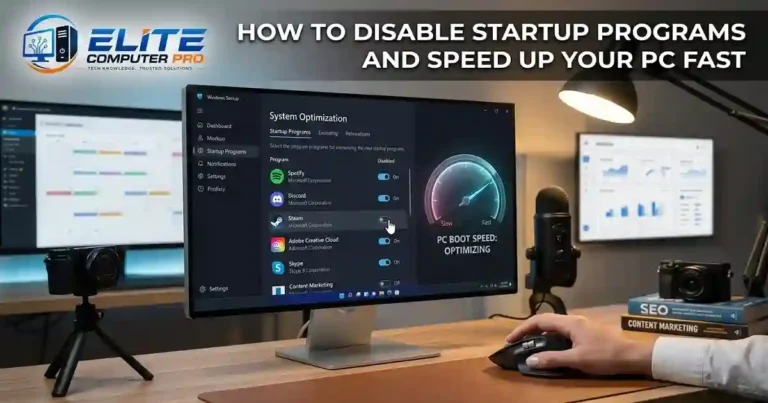
How to Disable Startup Programs and Speed Up Your PC Fast
Use Storage Sense to Free Space
Windows includes a built-in feature called Storage Sense that automatically removes temporary files and junk data.
How to Enable Storage Sense
- Open Settings
- Go to System
- Select Storage
- Turn on Storage Sense
This feature can:
- Delete temporary files
- Empty recycle bin automatically
- Remove old downloads
- Save disk space
Keeping storage clean helps Windows run more smoothly.
>>>> Read Also <<<<
How to Fix Windows Update Problems Fast in Windows 11
Uninstall Programs You Never Use
Many PCs come with apps you may never need. Removing unnecessary software can improve speed and reduce background activity.
Check installed apps regularly and remove:
- Old games
- Trial software
- Unused editing tools
- Duplicate utilities
Keep Windows Updated
Windows updates often include:
- Security fixes
- Performance improvements
- Driver updates
- Stability patches
To update Windows:
- Open Settings
- Click Windows Update
- Select Check for updates
Installing updates regularly helps prevent many system issues.
Useful Windows Keyboard Shortcuts
Keyboard shortcuts save time and improve productivity.
Most Helpful Windows Shortcuts
| Shortcut | Function |
|---|---|
| Windows + E | Open File Explorer |
| Windows + D | Show Desktop |
| Alt + Tab | Switch between apps |
| Windows + L | Lock computer |
| Ctrl + Shift + Esc | Open Task Manager |
| Windows + V | Open Clipboard History |
| Windows + Shift + S | Take screenshot |
Learning these shortcuts can make daily tasks much faster.
Windows Tips for Better Security
Turn On Windows Security
Microsoft Defender provides strong built-in protection.
Make sure these features are enabled:
- Real-time protection
- Firewall
- Virus scanning
- Ransomware protection
Enable Two Factor Authentication
Protect your Microsoft account with two-factor authentication. This adds an extra security layer by requiring a verification code during login.
Use Strong Passwords
Avoid weak passwords like:
- 123456
- password
- qwerty
Instead, create passwords using:
- Uppercase letters
- Numbers
- Symbols
- Longer phrases
Password managers can help store passwords safely.
Avoid Downloading Unknown Files
Many Windows problems come from unsafe downloads. Only download software from trusted sources such as:
- Microsoft
- Official developer websites
- Trusted app stores
Avoid suspicious links and pirated software.
Improve Battery Life on Windows Laptops
Battery optimization is important for students, travelers, and remote workers.
Reduce Screen Brightness
High brightness drains battery quickly. Lowering brightness slightly can increase battery life significantly.
Enable Battery Saver Mode
To activate Battery Saver:
- Open Settings
- Go to System
- Select Power & Battery
- Turn on Battery Saver
Close Background Apps
Some apps continue running even when unused. Disable unnecessary background apps to save power.
Use Sleep Instead of Shutdown Frequently
Sleep mode helps resume work quickly while using less power than leaving the laptop fully active.
Organize Your Windows Desktop Like a Pro
A cluttered desktop reduces productivity.
Create Organized Folders
Group files into folders such as:
- Work
- Personal
- Downloads
- Projects
- Photos
Pin Frequently Used Apps
Pin important apps to:
- Taskbar
- Start Menu
This reduces time spent searching for programs.
Use Virtual Desktops
Windows allows multiple desktops for better organization.
Example:
- One desktop for work
- One for entertainment
- One for study
To create virtual desktops:
- Press
Windows + Tab - Click New Desktop
>>>> Read Also <<<<
Optimize Windows 11 for Gaming With Better FPS Performance
Hidden Windows Features Most Users Ignore
Clipboard History
Clipboard History stores copied items for quick reuse.
Enable it using:
Windows + V
This feature is useful for writers, students, and office workers.
Focus Assist
Focus Assist blocks notifications during work or gaming.
You can customize when notifications appear.
Snap Layouts
Windows 11 includes Snap Layouts for organizing multiple windows.
Hover over the maximize button to arrange apps side-by-side easily.
Night Light Mode
Night Light reduces blue light and makes nighttime computer use more comfortable.
Enable it through display settings.
Windows Tips for Gamers
Gaming performance depends on both hardware and system settings.
Enable Game Mode
Game Mode prioritizes gaming performance by reducing background activity.
Steps:
- Open Settings
- Go to Gaming
- Turn on Game Mode
Update Graphics Drivers
Graphics drivers improve:
- FPS performance
- Game stability
- Compatibility
Popular GPU brands include:
- NVIDIA
- AMD
- Intel
Keep Storage Space Available
Games perform better when drives are not completely full.
Try to maintain at least 15–20% free storage.
Practical Experience
A university student complained that his laptop became extremely slow during online classes. The system took several minutes to start, browser tabs crashed often, and battery life dropped quickly. After checking the system, the main problems were:
- Too many startup apps
- Full storage drive
- Outdated Windows version
- Background syncing apps
By disabling unnecessary startup programs, enabling Storage Sense, updating Windows, and removing unused software, the laptop became noticeably faster within an hour. The student later mentioned that startup time dropped from almost five minutes to under one minute, and battery life improved during classes. Small Windows optimizations can create a major difference in everyday use.
Best Built In Windows Tools You Should Use
Task Manager
Task Manager helps identify:
- Slow apps
- High CPU usage
- Memory heavy processes
Open it with:
Ctrl + Shift + Esc
Disk Cleanup
Disk Cleanup removes temporary files and old update data.
File History
File History automatically backs up important files. This is useful if files are accidentally deleted.
Snipping Tool
The Snipping Tool helps capture screenshots quickly for work, tutorials, or study.
How to Keep Windows Running Smoothly
Restart Your PC Regularly
Many users leave computers running for weeks. Restarting clears temporary memory and refreshes system processes.
Keep Drivers Updated
Drivers help hardware communicate properly with Windows.
Update drivers for:
- Graphics cards
- Wi-Fi adapters
- Audio devices
- Printers
Avoid Installing Too Many Antivirus Programs
Using multiple antivirus tools together can slow the system. Usually, one reliable antivirus is enough.
Scan for Malware Occasionally
Even careful users should run occasional malware scans. Security scans help detect hidden threats early.
Windows Tips for Students and Remote Workers
Use OneDrive for Cloud Backup
Microsoft OneDrive helps store files online securely. Benefits include:
- File backup
- Access from multiple devices
- Easy sharing
Use Focus Sessions
Focus Sessions help manage study or work time with fewer distractions.
Sync Your Devices
A Microsoft account allows syncing:
- Passwords
- Browser history
- Settings
- Files
This makes switching devices easier.
Common Windows Mistakes to Avoid
Ignoring Updates
Delaying updates can create security risks.
Filling the Desktop with Files
Too many desktop items reduce organization and sometimes slow loading.
Downloading Random Optimization Software
Many “PC cleaner” tools are unnecessary or unsafe.
Stick to trusted built-in Windows utilities whenever possible.
Turning Off Security Features
Some users disable antivirus or firewall protection permanently. This increases the risk of malware infections.
Voice Search Friendly Windows Questions
Many users now search using voice assistants and AI tools. Here are examples of common voice search queries:
- How do I speed up my Windows PC?
- What are the best Windows tips?
- How can I improve Windows battery life?
- Why is my Windows laptop slow?
- How do I clean junk files in Windows?
- What are the best Windows keyboard shortcuts?
Optimizing content around natural questions improves AEO performance for AI search engines and voice assistants.
Frequently Asked Questions
What are the best Windows tips for beginners?
The best Windows tips for beginners include disabling startup apps, using keyboard shortcuts, enabling Windows Security, organizing files into folders, and keeping Windows updated.
How can I make my Windows PC faster?
You can improve speed by:
- Removing unused software
- Cleaning storage
- Disabling startup programs
- Updating drivers
- Restarting your PC regularly
Does Windows have built-in antivirus protection?
Yes. Microsoft Defender provides built-in antivirus and malware protection for Windows computers.
Is Windows 11 better than Windows 10?
Windows 11 includes newer features like Snap Layouts, improved design, and better multitasking. However, both operating systems remain useful depending on hardware compatibility and personal preference.
How often should I update Windows?
You should check for updates regularly and install important security updates as soon as possible.
What is the easiest way to free space in Windows?
Using Storage Sense and Disk Cleanup are among the easiest ways to remove unnecessary files safely.
Final Summary
Learning a few smart Windows tips can completely change your daily computer experience. Small adjustments like cleaning storage, organizing files, enabling security tools, and learning shortcuts can improve performance, productivity, and system stability.
The best part is that most of these features are already built into Windows. You do not need expensive software or advanced technical skills to make your computer work better.
Start with a few simple changes today. Disable unnecessary startup apps, organize your desktop, update Windows, and explore hidden tools like Clipboard History and Focus Assist. These small improvements can save time, reduce frustration, and help your computer stay fast for years.
Related: