Introduction
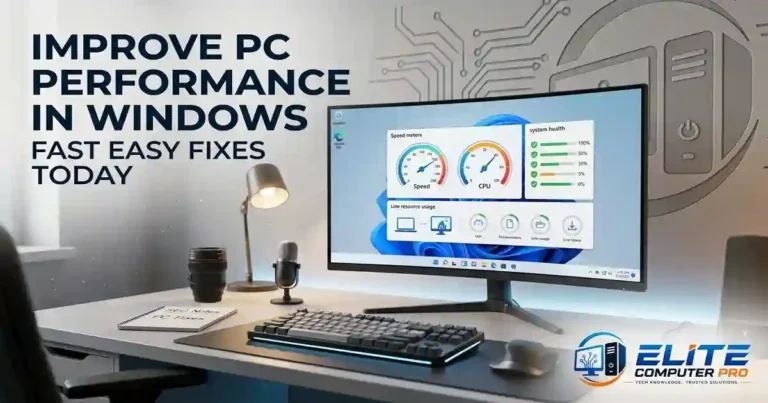
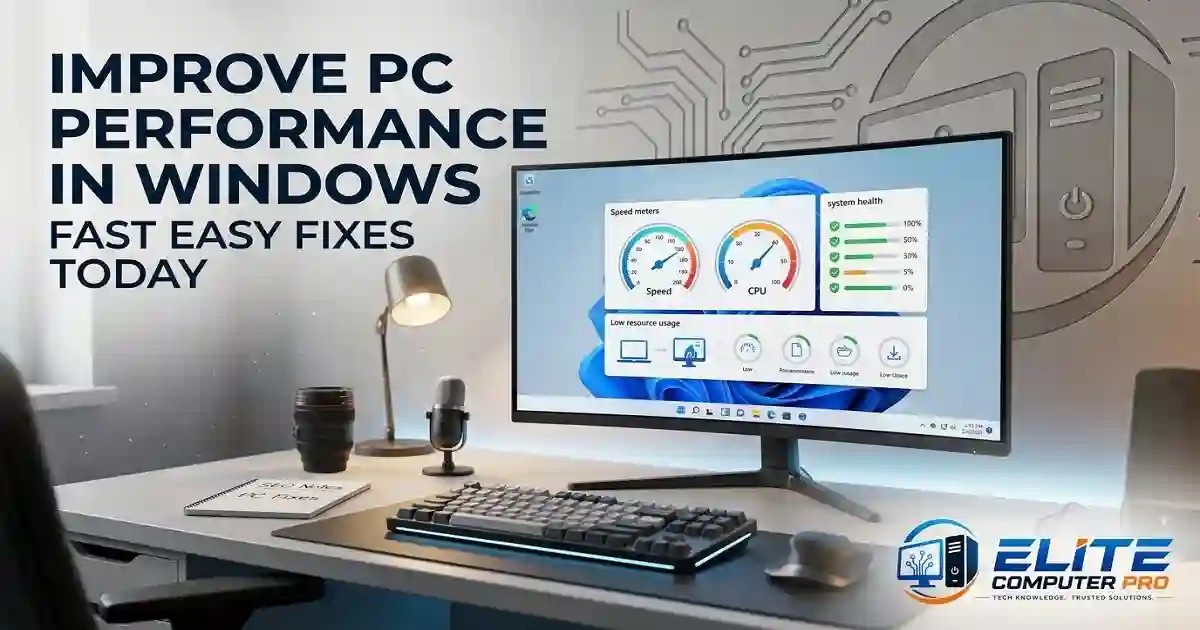
The good news is that you do not always need to buy a new computer. In many cases, a few smart changes can dramatically improve PC performance in Windows. Cleaning unnecessary files, disabling startup apps, updating drivers, and adjusting system settings can make your computer feel faster and smoother again.
A slow computer can turn simple tasks into frustrating experiences. Whether your Windows PC takes too long to start, freezes during work, or struggles while gaming, performance problems can waste time and reduce productivity.
This guide explains practical and simple methods to speed up your Windows PC. Every tip is simple to follow and designed for real users who want noticeable results without complicated technical knowledge.
Table of Contents
Why Windows PCs Become Slow Over Time
Before fixing performance issues, it helps to understand why computers slow down. Common reasons include:
- Too many startup programs
- Low storage space
- Outdated Windows updates
- Malware or unwanted software
- Background applications using memory
- Fragmented hard drives
- Old hardware
- Overheating problems
Even powerful computers can become slow if they are not maintained properly.
<<<< Read Also >>>>
Windows Tips and Tricks to Boost Speed, Security, Productivity
Signs Your PC Needs Performance Optimization
You may notice these symptoms:
- Slow startup time
- Programs opening late
- Frequent freezing
- Browser lag
- Fan running loudly
- High disk usage
- Delayed typing response
- Games stuttering or dropping frames
If you experience several of these issues, it is time to optimize your Windows system.
Best Ways to Improve PC Performance in Windows
1. Restart Your Computer Regularly
Many users leave their computers running for days or weeks. Restarting clears temporary memory usage and refreshes system processes.
Why Restarting Helps
When multiple apps run in the background, RAM usage increases. Restarting can:
- Clear temporary system errors
- Free memory
- Stop hidden background tasks
- Improve responsiveness
Try restarting your PC at least once every few days.
2. Disable Unnecessary Startup Programs
One of the biggest causes of slow startup is too many apps launching automatically.
<<<< Read Also >>>>
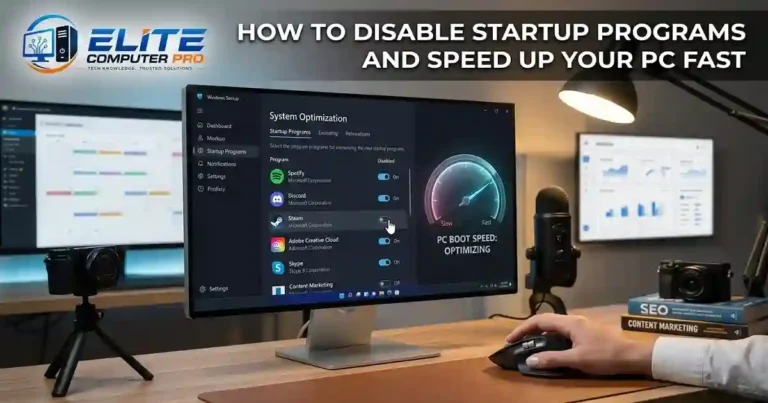
How to Disable Startup Programs and Speed Up Your PC Fast
How to Disable Startup Apps
Follow these steps:
- Press
Ctrl + Shift + Esc - Open Task Manager
- Click the “Startup Apps” tab
- Disable apps you do not need immediately
Common apps that can slow startup include:
- Spotify
- Discord
- Adobe services
- Skype
- Game launchers
Be careful not to disable important Windows services.
3. Free Up Storage Space
Low storage can significantly reduce Windows performance.
Delete Unnecessary Files
Remove:
- Old downloads
- Temporary files
- Duplicate videos
- Unused software
Use Storage Sense
Windows includes a built in cleanup tool. To enable it:
- Open Settings
- Go to System
- Select Storage
- Turn on Storage Sense
This automatically removes temporary and unnecessary files.
4. Uninstall Programs You No Longer Use
Unused applications consume storage and sometimes run background services.
Remove Unwanted Software
Go to:
- Settings
- Apps
- Installed Apps
Uninstall programs you no longer need.
Pay attention to:
- Trial antivirus software
- Old games
- Unused editing tools
- Toolbars and adware
Keeping only necessary software improves system efficiency.
5. Update Windows Regularly
Windows updates often include performance improvements, bug fixes, and security patches.
How to Check for Updates
- Open Settings
- Click Windows Update
- Select “Check for Updates”
Install available updates and restart your PC afterward.
6. Update Drivers for Better Performance
Outdated drivers can cause lag, crashes, and hardware issues.
Important Drivers to Update
Focus on:
- Graphics drivers
- Network drivers
- Audio drivers
- Chipset drivers
Trusted Driver Sources
Use official platforms such as:
Avoid suspicious third party driver websites.
7. Scan for Malware and Viruses
Malware can secretly use your PC resources.
Use Windows Security
Windows includes built-in protection. To scan your PC:
- Open Windows Security
- Select Virus & Threat Protection
- Run a Full Scan
You can also use trusted tools like:
8. Reduce Visual Effects
Windows animations look attractive but can slow older computers.
Turn Off Animations
Steps:
- Search “Performance Options”
- Open “Adjust the appearance and performance of Windows”
- Select “Adjust for best performance”
You can also manually keep certain visual effects enabled. This setting is especially useful for low end laptops.
9. Upgrade from HDD to SSD
Switching from a traditional hard drive to an SSD is one of the biggest performance upgrades possible.
HDD vs SSD
HDD
- Slower
- Mechanical parts
- Longer boot times
SSD
- Faster startup
- Better app loading
- Faster file transfers
- More responsive system
Popular SSD brands include:
Even older laptops feel much faster after installing an SSD.
10. Add More RAM
If your computer slows while multitasking, low memory may be the issue.
Signs You Need More RAM
- Browser tabs freezing
- Slow switching between apps
- High memory usage in Task Manager
Recommended RAM
- 4GB: Basic use
- 8GB: Everyday tasks
- 16GB: Gaming and editing
- 32GB: Professional workloads
Adding RAM improves multitasking performance significantly.
How to Improve Gaming Performance on Windows
Gamers often experience lag, FPS drops, or stuttering due to poor optimization.
Enable Game Mode
Windows includes a built-in Game Mode.
Steps
- Open Settings
- Go to Gaming
- Enable Game Mode
This prioritizes gaming resources.
Update Graphics Drivers
GPU updates improve game compatibility and FPS.
Close Background Apps
Before gaming:
- Close browsers
- Stop downloads
- Exit recording software
- Disable unnecessary overlays
Use High Performance Power Plan
- Open Control Panel
- Go to Power Options
- Select High Performance
This allows your CPU to run more aggressively.
Best Windows Settings for Faster Performance
Adjust Power Settings
Laptop power saving modes can reduce performance.
Choose Better Performance Mode
Go to:
- Settings
- System
- Power & Battery
- Power Mode
Choose “Best Performance.”
Turn Off Background Apps
Background apps consume RAM and CPU.
Disable Unnecessary Apps
- Open Settings
- Apps
- Installed Apps
- Adjust background permissions
Disable Transparency Effects
Transparency uses extra graphics resources.
Steps
- Open Settings
- Personalization
- Colors
- Disable Transparency Effects
Browser Optimization Tips
Sometimes the problem is not Windows itself but the web browser.
Clear Browser Cache
Too much cached data can slow browsing.
Clear:
- Cookies
- Cache
- Temporary data
Remove Unused Extensions
Browser extensions can reduce speed. Remove unnecessary add-ons from:
Keep Your Browser Updated
Updates improve security and performance.
Practical Example
A student using an older Windows laptop struggled with slow boot times and constant freezing during online classes. Opening multiple Chrome tabs caused the system to lag badly.
After upgrading from an HDD to a 500GB SSD and increasing RAM from 4GB to 8GB, the laptop became dramatically faster. Boot time dropped from nearly 3 minutes to under 20 seconds, and multitasking became smooth enough for video calls, browsing, and document editing at the same time.
This shows how small upgrades can extend the life of an older computer without replacing it completely.
Step-by-Step Windows Cleanup Guide
Step 1: Remove Temporary Files
- Press
Windows + R - Type
%temp% - Delete unnecessary files
Step 2: Empty Recycle Bin
Large deleted files still occupy space until removed permanently.
Step 3: Run Disk Cleanup
- Search “Disk Cleanup”
- Select your drive
- Remove temporary files
Step 4: Restart Your PC
This refreshes Windows processes.
Advanced Tips to Improve PC Performance in Windows
Use Task Manager to Find Heavy Apps
Task Manager shows resource usage.
Check:
- CPU usage
- Memory usage
- Disk activity
Close apps consuming excessive resources.
Disable Search Indexing on Slow PCs
Search indexing can increase disk usage.
How to Disable
- Search “Services”
- Find Windows Search
- Stop the service
This may help older systems.
Defragment HDD Drives
Only use this for traditional hard drives, not SSDs.
Steps
- Search “Defragment and Optimize Drives”
- Select HDD
- Click Optimize
Common Mistakes That Slow Down Windows
Avoid these habits:
- Installing too many antivirus programs
- Ignoring updates
- Filling storage completely
- Downloading unknown software
- Running dozens of browser tabs
- Never restarting the PC
Good maintenance prevents long term slowdowns.
Best Free Tools for Windows Optimization
CCleaner
Useful for:
- Cleaning junk files
- Managing startup apps
HWMonitor
Helps monitor:
- CPU temperature
- Fan speed
- Voltage
CrystalDiskInfo
Checks hard drive health.
How to Keep Your Windows PC Fast
Maintaining performance is easier than fixing major problems later.
Monthly Maintenance Checklist
- Delete unnecessary files
- Scan for malware
- Update Windows
- Check startup apps
- Backup important data
- Restart regularly
Avoid Software Bloat
Install only trusted and necessary applications.
Frequently Asked Questions
How can I improve PC performance in Windows quickly?
You can improve performance quickly by restarting your PC, disabling startup programs, deleting temporary files, and updating Windows and drivers.
Why is my Windows computer suddenly slow?
Common reasons include malware, low storage, outdated drivers, too many background apps, or failing hardware.
Does adding RAM improve PC speed?
Yes. More RAM improves multitasking and reduces lag, especially when using multiple applications simultaneously.
Is SSD better than HDD for performance?
Yes. SSDs are much faster than HDDs and significantly improve boot times, app loading, and overall responsiveness.
Should I use third-party PC cleaner apps?
Some trusted tools like CCleaner can help, but avoid unknown optimization apps that make unrealistic promises.
How often should I clean my PC?
Basic cleanup once a month is usually enough for most users.
Can overheating slow down a PC?
Yes. Excess heat forces the CPU and GPU to reduce performance to prevent damage.
Does Windows Defender affect performance?
Windows Security uses some system resources, but it is generally lightweight and safer than many third-party antivirus programs.
Voice Search Friendly Questions
How do I make my Windows PC faster?
Disable startup apps, clean unnecessary files, update Windows, and upgrade to an SSD if possible.
What is the fastest way to speed up a slow laptop?
Installing an SSD and adding RAM are usually the most effective upgrades.
Why is my PC taking so long to boot?
Too many startup applications, low storage, or an old hard drive are common causes.
Summary
A slow Windows PC does not always mean your computer is outdated. In many cases, simple maintenance and smart upgrades can dramatically improve speed and responsiveness.
Start with easy steps like removing startup apps, cleaning temporary files, updating Windows, and scanning for malware. If your budget allows, upgrading to an SSD and adding more RAM can completely transform your experience.
The key is consistency. Small maintenance habits keep your computer running smoothly for years while improving productivity, gaming, browsing, and everyday performance.
Related: