Introduction
This guide explains everything in simple way. You will learn step-by-step methods to optimize Windows 11 for gaming without confusing technical jargon.
Gaming on Windows 11 can feel incredibly smooth when your PC is properly optimized. But many gamers struggle with lag, FPS drops, stuttering, overheating, and slow loading times even on powerful hardware.
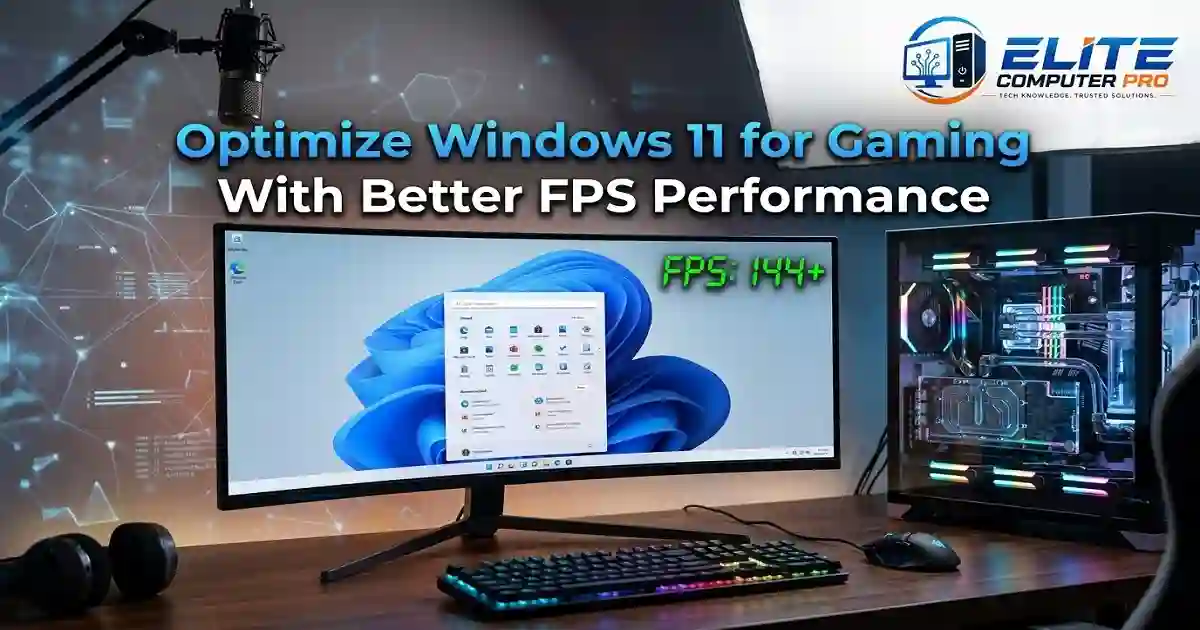
The good news is that you do not always need expensive upgrades. Small Windows 11 tweaks can make a huge difference in gaming performance. Whether you play competitive games like Valorant, battle royale titles like Fortnite, or demanding AAA games like Cyberpunk 2077, optimizing Windows 11 helps improve FPS, reduce input lag, and create a smoother gaming experience.
Table of Contents
Why Windows 11 Optimization Matters for Gaming
Many PCs lose gaming performance because of:
- Background apps
- Unnecessary startup programs
- Old drivers
- Wrong graphics settings
- Windows visual effects
- Power saving settings
- Storage clutter
- Outdated game software
When these issues build up, your system wastes resources that should be used for gaming.
Optimizing Windows 11 helps:
- Increase FPS
- Reduce stuttering
- Improve response time
- Lower system load
- Speed up game launches
- Improve overall stability
Even mid range gaming PCs can perform noticeably better after proper optimization.
>>>> Read Also <<<<
Best GPUs for 1440p Gaming in 2026
Check Your PC Before Optimizing
Before changing settings, confirm your hardware is capable of running modern games smoothly.
Recommended Gaming Components
Processor (CPU)
A modern multi core processor helps games run smoothly.
Examples:
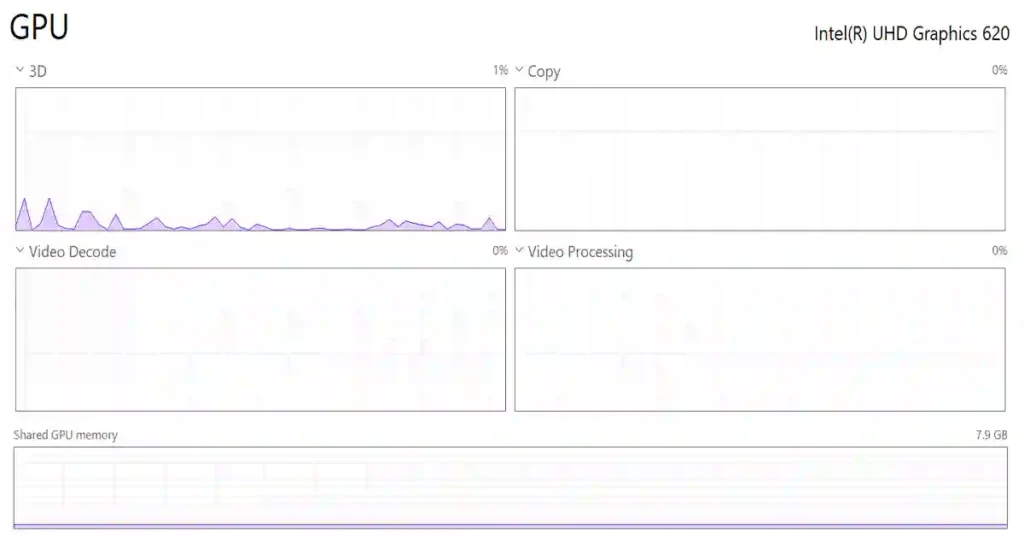
Graphics Card (GPU)
Your GPU has the biggest impact on gaming performance.
Popular gaming GPUs:
- NVIDIA GeForce RTX 4070
- AMD Radeon RX 7800 XT
RAM
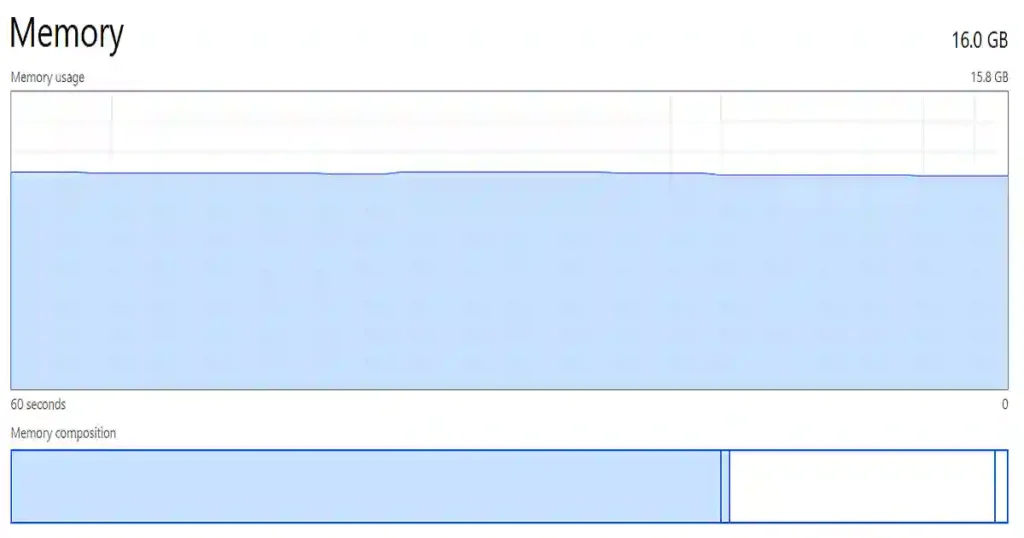
At least 16GB RAM is recommended for modern gaming.
SSD Storage
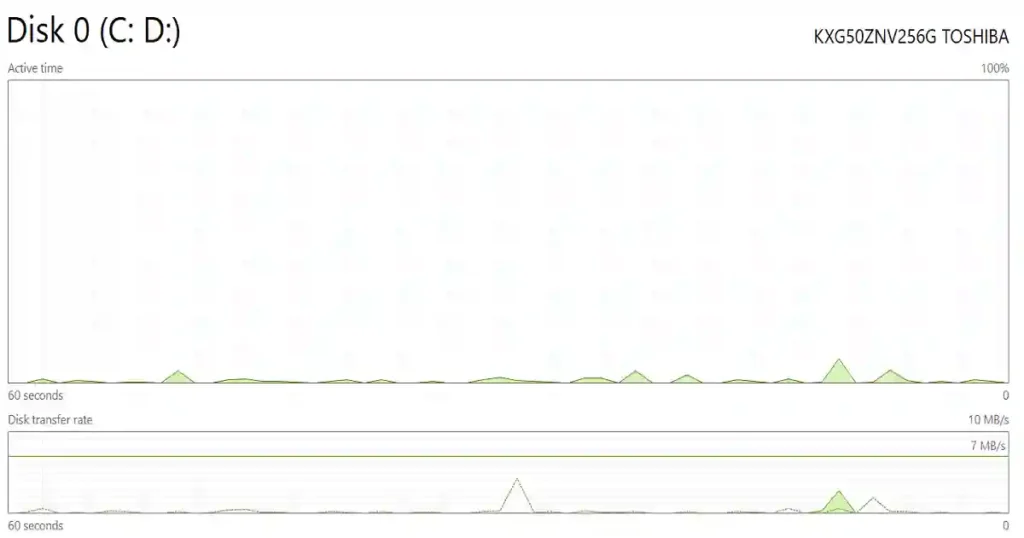
Games load much faster on SSDs compared to traditional HDDs.
>>>> Read Also <<<<
Windows 11 Tutorial for Beginners and Advanced Users
Enable Game Mode in Windows 11
Windows 11 includes a built-in Game Mode that prioritizes gaming performance.
How to Enable Game Mode
- Open Settings
- Click Gaming
- Select Game Mode
- Turn it ON
Game Mode helps by:
- Reducing background activity
- Prioritizing CPU and GPU resources
- Preventing unnecessary updates during gameplay
This is one of the easiest ways to optimize Windows 11 for gaming.
Update Graphics Drivers Regularly
Old GPU drivers can reduce FPS and cause crashes.
Always keep drivers updated directly from official manufacturers.
Best Driver Software Platforms
Why Driver Updates Matter
Driver updates often include:
- FPS improvements
- Game optimizations
- Bug fixes
- Better stability
- Reduced crashes
Many gamers ignore this step, but it can provide noticeable improvements.
Disable Startup Apps That Slow Down Gaming
Too many startup apps consume RAM and CPU power.
How to Disable Startup Programs
- Press Ctrl + Shift + Esc
- Open Task Manager
- Click Startup Apps
- Disable unnecessary applications
Examples:
- Music apps
- Chat apps
- Updaters
- Background launchers
Keep only essential programs enabled.
>>>> Read Also <<<<
Windows 10 Tutorial Guide for Beginners and Daily Users
Use the Best Power Settings
Windows power settings directly affect gaming performance.
Change to High Performance Mode
- Open Control Panel
- Go to Power Options
- Select High Performance
If available, choose:
- Ultimate Performance Mode
This prevents Windows from limiting CPU speed to save power. Laptop users should play games while plugged into charging power for maximum performance.
Optimize Graphics Settings for Better FPS
Many games use ultra settings by default, which can heavily reduce FPS. Instead of maxing everything out, adjust settings smartly.
Best Graphics Settings for Higher FPS
Lower These First
- Shadows
- Motion blur
- Volumetric effects
- Ambient occlusion
Keep These Moderate
- Texture quality
- Anti-aliasing
- Draw distance
Turn Off
- Motion blur
- Film grain
- Depth of field
These effects often reduce performance without improving gameplay much.
Turn On Hardware Accelerated GPU Scheduling
This feature helps reduce GPU workload delays.
Enable It Like This
- Open Settings
- Go to System
- Click Display
- Open Graphics
- Select Default graphics settings
- Turn on:
- Hardware-accelerated GPU scheduling
Restart your PC afterward.
Enable Storage Sense and Clean Junk Files
Low storage space can slow down gaming performance.
Clean Your System
Use Storage Sense
- Open Settings
- Go to Storage
- Turn on Storage Sense
Delete Temporary Files
Remove:
- Cache files
- Old downloads
- Temporary Windows files
You can also use:
Be careful not to delete important files.
Reduce Background Processes
Background apps can quietly consume system resources.
Apps That Often Use Too Much RAM
- Web browsers
- Streaming apps
- RGB software
- Recording tools
- Cloud sync software
Close unnecessary apps before gaming. This alone can noticeably improve FPS on lower-end PCs.
Enable DirectStorage for Faster Loading
Windows 11 supports DirectStorage technology for supported SSDs and games.
Benefits of DirectStorage
- Faster loading screens
- Better texture streaming
- Reduced stuttering
DirectStorage works best with:
- NVMe SSDs
- Modern GPUs
Games optimized for this feature continue to grow each year.
Adjust Windows Visual Effects
Fancy animations can waste system resources.
Disable Unnecessary Effects
- Search:
- “Adjust appearance and performance”
- Select:
- Adjust for best performance
Or manually disable:
- Animations
- Transparency effects
- Shadows
This helps weaker systems perform better.
Keep Windows 11 Updated
Windows updates often include:
- Security fixes
- Gaming improvements
- Stability updates
How to Check Updates
- Open Settings
- Click Windows Update
- Install available updates
Avoid skipping updates for long periods.
Use Gaming Browsers and Lightweight Software
Heavy software running in the background affects gaming. Consider lightweight tools while gaming.
Better Browser Choices for Gamers
Opera GX includes:
- RAM limiter
- CPU limiter
- Gaming focused features
Optimize Internet Connection for Online Games
Online multiplayer games depend heavily on stable internet.
Reduce Lag and Ping
Use Ethernet Instead of Wi-Fi
Wired connections are more stable.
Close Background Downloads
Pause:
- Game updates
- Cloud backups
- Streaming
Restart Your Router
A simple restart often improves connectivity.
Use Gaming DNS
Popular DNS services:
Manage Game Overlays Carefully
Overlays can reduce FPS.
Overlays That May Impact Performance
- Discord overlay
- Xbox Game Bar
- GeForce Experience overlay
- Steam overlay
Disable overlays you do not use.
Best Windows 11 Settings for Competitive Gaming
Competitive gamers need low latency and maximum FPS.
Recommended Competitive Settings
- Low graphics settings
- Fullscreen mode
- High refresh rate enabled
- V-Sync OFF
- Motion blur OFF
This improves reaction time and input responsiveness.
Games like:
- Counter-Strike 2
- Call of Duty: Warzone
benefit heavily from these tweaks.
Monitor Temperatures While Gaming
Overheating reduces gaming performance through thermal throttling.
Useful Monitoring Tools
Safe Gaming Temperatures
CPU
- Ideally below 85°C
GPU
- Ideally below 80°C
Clean dust regularly to improve airflow.
A Real Gaming Performance Experience
One gamer using a mid range PC with:
- RTX 3060
- 16GB RAM
- Windows 11
noticed heavy FPS drops in Apex Legends.
After:
- Updating GPU drivers
- Enabling Game Mode
- Disabling startup apps
- Cleaning temporary files
- Lowering shadow settings
Their FPS improved from around 75 FPS to nearly 110 FPS in competitive matches. The improvement came entirely from optimization without buying new hardware.
Advanced Windows 11 Gaming Tweaks
Enable Variable Refresh Rate
- Open Graphics Settings
- Enable:
- Variable refresh rate
This reduces screen tearing in supported games.
Set Games to High Performance GPU
If you use a gaming laptop:
- Open Graphics Settings
- Add your game
- Choose:
- High performance GPU
This prevents games from using weaker integrated graphics.
Disable Background Recording
Xbox Game Bar recording can affect FPS.
Turn It Off
- Open Settings
- Go to Gaming
- Select Captures
- Disable:
- Background recording
Best Apps for PC Gaming Optimization
Useful Optimization Tools
| Tool | Purpose |
|---|---|
| Razer Cortex | Game booster |
| MSI Afterburner | GPU monitoring |
| Steam | Game platform |
| NVIDIA GeForce Experience | Driver optimization |
Use optimization software carefully and avoid suspicious “FPS booster” apps.
Common Mistakes Gamers Should Avoid
1. Installing Too Many Booster Apps
Many fake optimizers actually slow PCs down.
2. Ignoring Dust Cleaning
Dust increases heat and lowers performance.
3. Using Full Storage Drives
Always keep free space available.
4. Running Too Many Background Apps
Close unnecessary programs before gaming.
5. Ignoring Driver Updates
Outdated drivers can hurt performance badly.
Voice Search Friendly Quick Answers
How do I optimize Windows 11 for gaming?
Enable Game Mode, update GPU drivers, use High Performance power mode, disable startup apps, and lower unnecessary graphics settings.
Does Windows 11 improve gaming?
Yes. Windows 11 includes gaming features like DirectStorage, Auto HDR, and better optimization for modern hardware.
How can I get more FPS on Windows 11?
Reduce background apps, optimize graphics settings, update drivers, and clean temporary files.
Is Game Mode good for gaming?
Yes. Game Mode prioritizes gaming resources and reduces background interruptions.
FAQ About Optimizing Windows 11 for Gaming
What is the best Windows 11 setting for gaming?
High Performance power mode combined with Game Mode and updated GPU drivers gives excellent gaming results.
Does disabling startup apps improve FPS?
Yes. Startup apps consume RAM and CPU resources, which can reduce gaming performance.
Should I use Windows 11 for gaming?
Yes. Windows 11 supports modern gaming technologies like DirectStorage and Auto HDR, making it a strong choice for gamers.
How much RAM is good for gaming in 2026?
16GB RAM is considered the minimum for smooth modern gaming, while 32GB is ideal for heavy multitasking and AAA titles.
Does SSD improve gaming performance?
Yes. SSDs improve loading speeds, texture streaming, and system responsiveness.
Can overheating reduce FPS?
Yes. High temperatures trigger thermal throttling, which lowers CPU and GPU performance.
Should I disable overlays while gaming?
If you do not use them, disabling overlays can improve FPS and reduce input lag.
Final Summary
Learning how to optimize Windows 11 for gaming can dramatically improve your gaming experience without spending money on expensive upgrades.
Simple changes like:
- Updating drivers
- Enabling Game Mode
- Adjusting graphics settings
- Cleaning background apps
- Using SSD storage
can produce smoother gameplay, faster loading times, and higher FPS.
The best approach is to optimize step by step instead of changing everything at once. Test your games after each adjustment and keep the settings that improve performance the most.
A properly optimized Windows 11 gaming PC feels faster, more responsive, and more enjoyable whether you play competitive esports titles or demanding AAA games.
Related: