Introduction
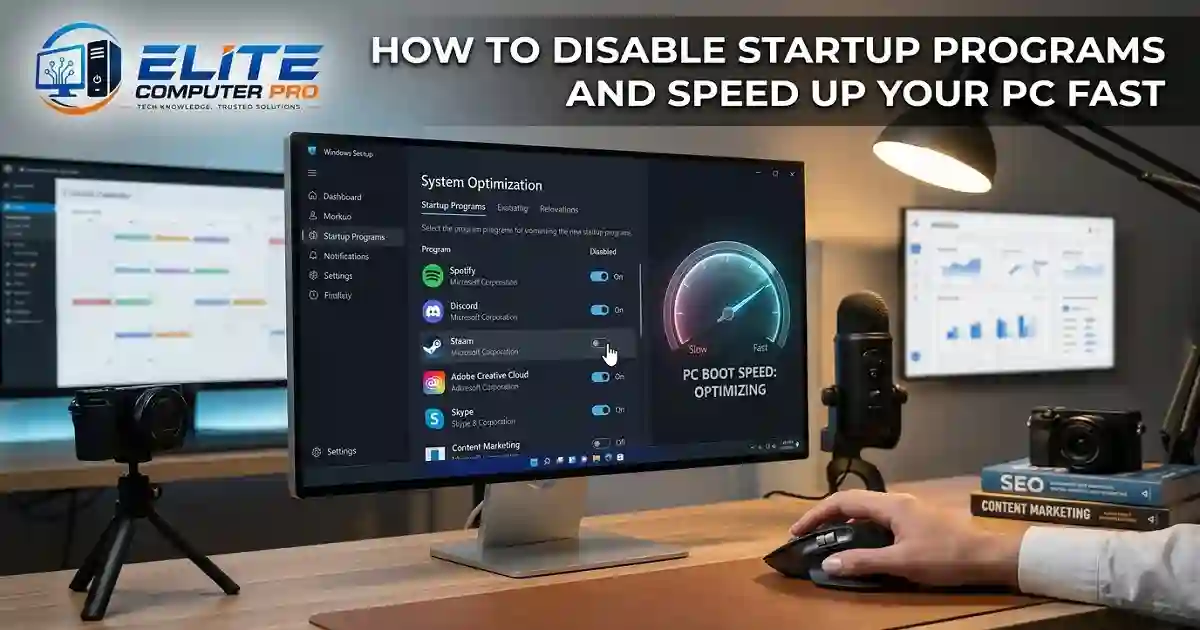
Learning how to disable startup programs is one of the easiest ways to improve PC performance without spending money on upgrades. Whether you use Windows 10 or Windows 11, managing startup apps can help your system boot faster, reduce RAM usage, and improve overall responsiveness.
A slow computer can ruin productivity, gaming, streaming, and even simple browsing. One of the biggest reasons behind slow boot times is too many startup programs running in the background. Many apps automatically launch when Windows starts, even when you do not need them immediately.
The good news is that you can fix this problem in just a few minutes.
This guide explains everything step-by-step in simple way. You will learn:
- What startup programs are
- Why they slow down your computer
- How to disable them safely
- Which apps should stay enabled
- Common mistakes to avoid
- Best tools for startup management
By the end of this article, your computer should feel lighter, cleaner, and faster.
Table of Contents
What Are Startup Programs?
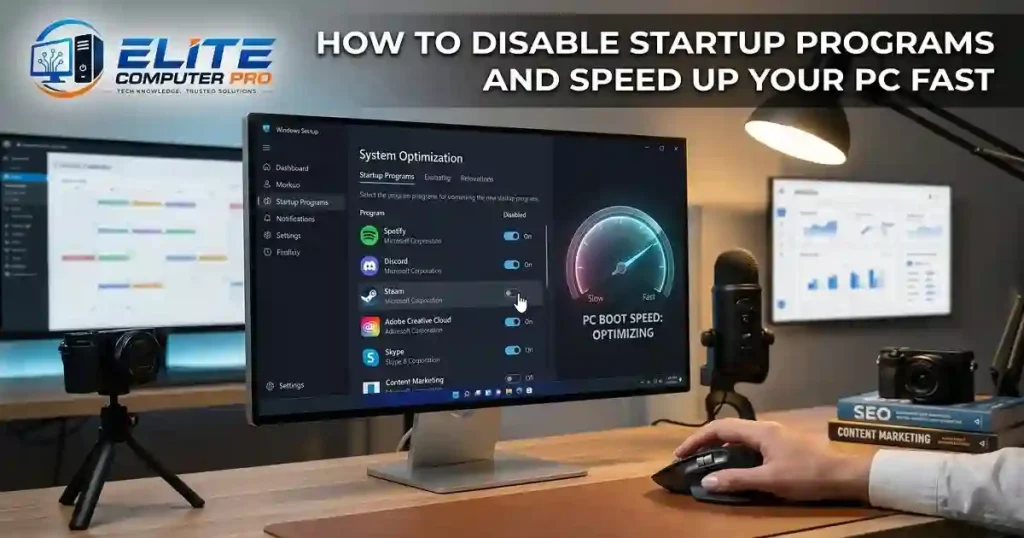
Startup programs are apps and services that automatically open when your computer starts. Some applications add themselves to startup settings during installation. This allows them to launch instantly after booting Windows.
Examples include:
- Discord
- Spotify
- Microsoft Teams
- Zoom
- Adobe Creative Cloud
- Steam
- OneDrive
- Antivirus software
While some startup apps are useful, many are unnecessary. Too many startup programs can consume:
- RAM
- CPU resources
- Disk usage
- Battery life
This leads to slow startup times and laggy performance.
>>>> Read Also <<<<
OLED vs LED Monitor Which Display Is Best for Gaming, Work, and Everyday Use
Why You Should Disable Startup Programs
Disabling unnecessary startup apps can make a major difference.
Main Benefits
Faster Boot Time
Windows loads fewer applications during startup, reducing waiting time.
Better Performance
Your CPU and RAM stay available for important tasks.
Reduced Background Activity
Fewer apps running silently means smoother performance.
Improved Gaming Experience
Games get more system resources.
Longer Battery Life
Especially helpful for laptops.
Less Internet Usage
Some apps constantly sync or update in the background.
>>>> Read Also <<<<
Optimize Windows 11 for Gaming With Better FPS Performance
Signs You Have Too Many Startup Programs
Your PC may have startup overload if:
- Windows takes several minutes to boot
- Apps open slowly
- The fan runs constantly
- RAM usage stays high even when idle
- The desktop freezes after login
- Games stutter unexpectedly
If these issues sound familiar, startup management can help immediately.
How to Disable Startup Programs on Windows 11
Windows 11 makes startup management simple.
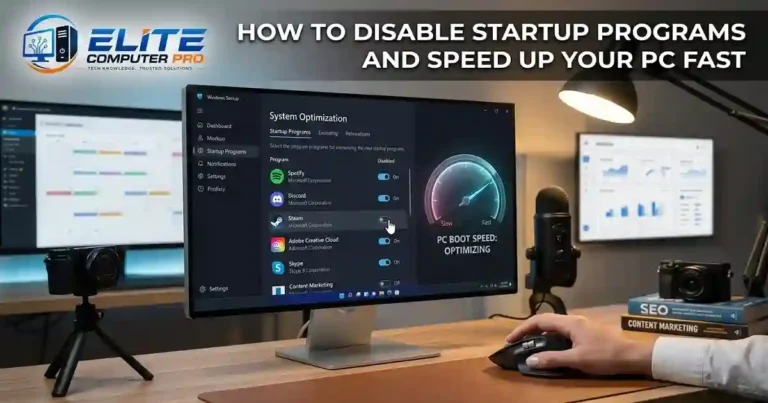
Method 1: Using Task Manager
Step-by-Step Guide
- Press Ctrl + Shift + Esc
- Open Task Manager
- Click the Startup Apps tab
- Review the list of applications
- Right-click the unnecessary app
- Select Disable
That’s it.
The app will no longer launch automatically during startup.
Understanding Startup Impact
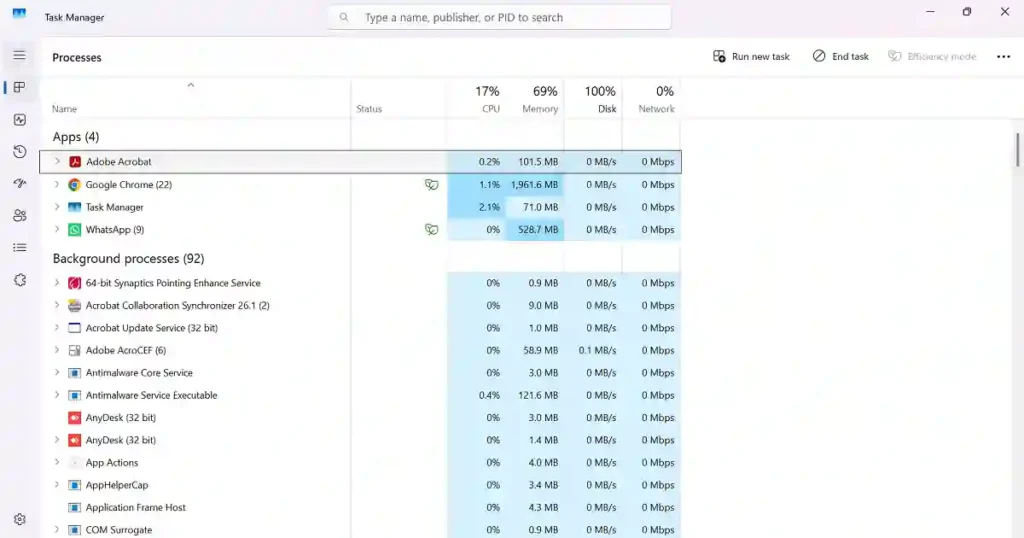
Windows shows a “Startup Impact” rating for each app.
Impact Levels
- Low Impact – Minimal effect
- Medium Impact – Moderate resource use
- High Impact – Significant slowdown
Focus on disabling high-impact apps first.
>>>> Read Also <<<<
Best GPUs for 1440p Gaming in 2026
How to Disable Startup Programs on Windows 10
The process is nearly identical.
Steps for Windows 10
- Right click the taskbar
- Open Task Manager
- Go to the Startup tab
- Choose apps you do not need
- Click Disable
Restart your PC afterward to notice the difference.
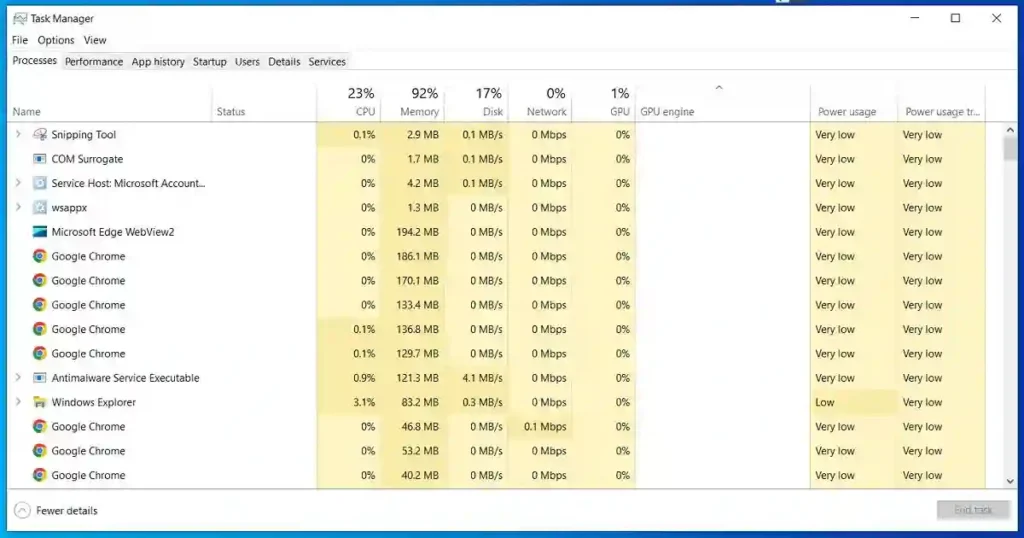
Which Startup Programs Should You Disable?
Not every startup app should be turned off. Here is a simple process.
Usually Safe to Disable
These apps normally do not need instant startup.
- Spotify
- Skype
- Discord
- Steam
- Adobe Updater
- Zoom
- Microsoft Teams
- Epic Games Launcher
- uTorrent
- Slack
Apps You Should Usually Keep Enabled
Some programs are important for security or hardware functions.
- Antivirus software
- Windows Security
- Audio drivers
- Touchpad software
- Graphics drivers
- Cloud backup tools you actively use
Disabling critical system services can create problems.
Real Practical Experience
A friend recently complained that his gaming PC took almost four minutes to fully load Windows. Even after the desktop appeared, the system froze repeatedly.
After checking Task Manager, we found more than 20 startup apps running automatically, including Spotify, Discord, Steam, Adobe Creative Cloud, Skype, and several update tools. We disabled the unnecessary ones while keeping security apps active.
The result was noticeable immediately:
- Boot time dropped from nearly four minutes to under one minute
- RAM usage decreased significantly
- Games launched faster
- The desktop stopped freezing
No hardware upgrade was needed.
How to Disable Startup Programs From Windows Settings
Windows Settings also includes startup controls.
Steps
- Open Settings
- Click Apps
- Select Startup
- Toggle apps On or Off
This method is beginner-friendly and easy to understand.
How to Disable Startup Programs Using System Configuration
Advanced users sometimes use System Configuration.
Steps
- Press Windows + R
- Type
msconfig - Press Enter
- Open the Services tab
- Hide Microsoft services
- Disable unnecessary third-party services
Be careful with this method because disabling essential services may affect software functionality.
Best Startup Programs Manager Tools
Several trusted tools help manage startup applications more effectively.
Popular Tools
IObit Advanced SystemCare
Includes startup optimization and performance boosting features.
Autoruns
Advanced startup analysis tool from Microsoft.
CCleaner
Offers startup management and junk cleaning.
Glary Utilities
Provides system optimization tools including startup control.
These tools give deeper visibility into hidden startup entries.
Common Mistakes to Avoid
Many users disable random services without understanding their purpose.
Avoid these mistakes.
Disabling Antivirus Software
Security tools should usually stay enabled.
Turning Off Driver Utilities
Audio, GPU, or touchpad utilities may be necessary.
Disabling Everything
Not every startup app is harmful.
Installing Too Many Optimizers
Using multiple optimization apps can cause conflicts.
How Startup Programs Affect Gaming Performance
Gamers often ignore background startup apps.
This can reduce FPS and increase lag.
Common Gaming Problems Caused by Startup Apps
- High RAM usage
- CPU spikes
- Disk activity during gameplay
- Background updates
- Network bandwidth usage
Disabling unnecessary startup apps can improve gaming smoothness significantly.
Startup Programs vs Background Apps
Many people confuse startup apps with background apps.
Startup Apps
Launch automatically when Windows starts.
Background Apps
Run silently even after startup.
You should optimize both for maximum performance.
How to Check Startup Performance in Windows
Windows provides built-in startup monitoring.
Steps
- Open Task Manager
- Go to Startup Apps
- Review:
- Status
- Startup impact
- Publisher
This helps identify performance-heavy programs.
Should You Disable Microsoft Services?
Usually, no. Microsoft services are essential for Windows stability. If you disable important system services, you may experience:
- Crashes
- Driver issues
- Login problems
- Missing features
Always focus on third party apps first.
How Often Should You Review Startup Apps?
A monthly check is a good habit. Newly installed software often adds itself automatically to startup settings. Reviewing startup apps regularly helps maintain performance.
How Startup Programs Affect SSD and HDD Systems
Startup overload impacts both SSD and HDD systems differently.
SSD Users
Boot times are faster but unnecessary apps still waste RAM and CPU.
HDD Users
Too many startup apps can severely slow boot speed because hard drives are slower than SSDs.
Startup optimization is especially important for older HDD-based computers.
Tips to Keep Your PC Fast After Disabling Startup Apps
Disabling startup programs helps a lot, but combining it with other maintenance tips gives even better results.
Helpful Performance Tips
Keep Windows Updated
Updates often improve performance and stability.
Remove Unused Software
Old applications consume space and resources.
Use Storage Sense
Windows can automatically clean temporary files.
Scan for Malware
Malware often adds hidden startup entries.
Upgrade to SSD
If you still use HDD storage, upgrading to SSD dramatically improves startup speed.
Restart Your PC Regularly
Long uptime sessions can slow system performance.
How to Re-Enable Startup Programs
If you accidentally disable something important, you can easily restore it.
Steps
- Open Task Manager
- Go to Startup Apps
- Right-click the app
- Click Enable
Restart the PC afterward.
Windows Startup Folder Explained
Windows also includes a Startup Folder. Programs added here launch automatically.
Open Startup Folder
Press:
Windows + R
Then type:
shell:startup
You can manually remove shortcuts from this folder.
Can Startup Programs Cause High RAM Usage?
Yes. Every startup app consumes memory. If too many applications launch automatically:
- RAM usage increases
- Multitasking becomes slower
- Browser tabs lag
- Games may stutter
Disabling unnecessary startup apps helps free memory.
Are Startup Optimizer Apps Safe?
Some are safe, while others are misleading.
Trusted Optimization Software
- Microsoft PC Manager
- CCleaner
- Autoruns
Avoid unknown “speed booster” apps that make unrealistic claims.
Voice Search Friendly Quick Answers
How do I disable startup programs on Windows?
Open Task Manager, go to Startup Apps, right-click unnecessary apps, and choose Disable.
Does disabling startup apps speed up a computer?
Yes. Fewer startup apps reduce boot time and improve performance.
Is it safe to disable startup programs?
Yes, if you disable non-essential apps only.
Which startup apps should stay enabled?
Keep antivirus, drivers, and important system utilities enabled.
Frequently Asked Questions
What happens if I disable startup programs?
The programs will no longer launch automatically when Windows starts. You can still open them manually anytime.
Can disabling startup apps improve gaming?
Yes. It frees CPU and RAM resources, helping games run more smoothly.
How many startup programs are too many?
There is no exact number, but if several high-impact apps launch automatically, performance may suffer.
Should I disable all startup apps?
No. Some apps are necessary for security and hardware support.
Why does my PC still feel slow after disabling startup apps?
Other factors may be involved, such as malware, low RAM, outdated drivers, overheating, or an old hard drive.
Are startup apps the same as background processes?
No. Startup apps launch at boot, while background processes continue running silently afterward.
Can startup programs affect laptop battery life?
Yes. More startup apps mean more background activity, which increases battery usage.
Best Practices for Startup Optimization
Follow these simple rules:
- Disable only unnecessary apps
- Keep security software active
- Review startup apps monthly
- Avoid random registry tweaks
- Use trusted optimization tools
- Restart after major changes
These habits help maintain long-term system performance.
Final Conclusion
Learning how to disable startup programs is one of the easiest ways to improve Windows performance without technical expertise. A few simple changes can reduce boot time, lower RAM usage, and create a smoother experience for work, gaming, and everyday tasks.
Most computers become cluttered over time because apps quietly add themselves to startup settings. Cleaning those entries regularly keeps your system responsive and efficient.
Start with high impact apps you rarely use, keep essential security tools enabled, and review your startup list every few weeks. Small maintenance habits can make a surprisingly big difference in how fast your PC feels every day.
Related: