Fix Windows Update Problems
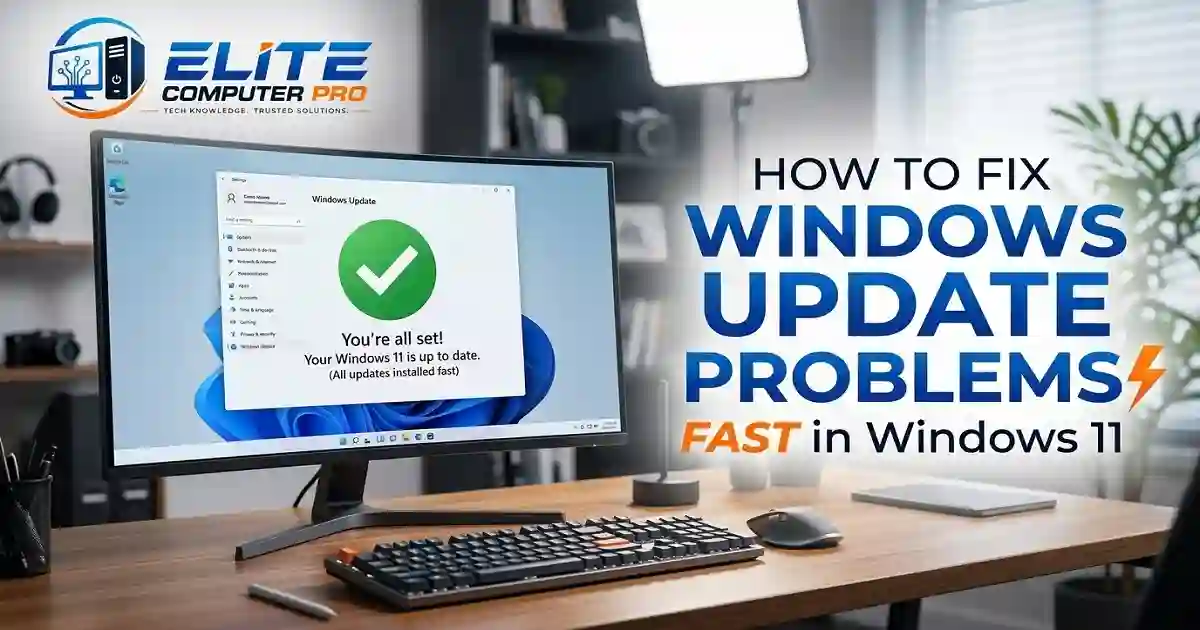
This guide explains how to troubleshoot or Fix Windows Update problems in Windows 11 using simple methods anyone can follow. You will also learn practical tips, useful tools, and step-by-step solutions that work in real situations.
Windows updates are important for keeping your computer secure, fast, and stable. They bring new features, fix bugs, improve drivers, and protect your PC from security threats. But sometimes updates fail, freeze, get stuck, or show confusing error messages. Many Windows 11 users face problems like:
- Windows Update stuck at 0%
- Update downloading forever
- Error codes during installation
- PC restarting repeatedly
- Updates failing after reboot
- Slow update performance
The good news is that most update issues can be fixed without reinstalling Windows.
Table of Contents
Why Windows Update Problems Happen
Before fixing the issue, it helps to understand what causes it.
Common reasons include:
- Corrupted update files
- Low storage space
- Weak internet connection
- Damaged system files
- Driver conflicts
- Antivirus interference
- Outdated BIOS or chipset drivers
- Windows services not working properly
Sometimes the issue is temporary, while other times deeper system corruption may be involved.
>>>> Read also <<<<
Optimize Windows 11 for Gaming With Better FPS Performance
Check Your Internet Connection First
A poor internet connection can interrupt Windows updates. Try these quick checks:
- Restart your router
- Disconnect VPN services
- Use Ethernet instead of Wi-Fi if possible
- Pause other downloads or streaming apps
- Test your internet speed
If websites are loading slowly, Windows updates may also struggle to download.
Restart Your PC Before Trying Anything Advanced
A simple restart can solve temporary update glitches. Many users skip this step and waste hours on unnecessary troubleshooting.
To restart properly:
- Click the Start menu
- Select Power
- Choose Restart
After rebooting, check for updates again.
>>>> Read also <<<<
Windows 11 Tutorial for Beginners and Advanced Users
Run the Windows Update Troubleshooter
Windows 11 includes a built-in repair tool that automatically detects common update problems.
Steps to Run the Troubleshooter
- Open Settings
- Go to System
- Click Troubleshoot
- Select Other troubleshooters
- Find Windows Update
- Click Run
The tool may automatically:
- Restart update services
- Repair corrupted cache files
- Fix permissions
- Reset update components
After it finishes, restart your computer.
Free Up Storage Space
Windows updates need free storage to download and install properly. If your drive is almost full, updates may fail repeatedly.
How Much Free Space Is Recommended?
For smoother updates:
- Keep at least 20GB free on SSDs
- Keep 25GB or more on HDDs
Ways to Free Storage
Delete:
- Temporary files
- Old downloads
- Large unused apps
- Recycle Bin content
You can also use the built-in Storage Sense feature.
Enable Storage Sense
- Open Settings
- Go to System > Storage
- Turn on Storage Sense
Windows will automatically remove unnecessary temporary files.
>>>> Read also <<<<
How to Disable Startup Programs and Speed Up Your PC Fast
Check the Exact Windows Update Error Code
Windows often shows error codes like:
- 0x80070002
- 0x800f081f
- 0x8024402c
- 0x80073712
These codes help identify the exact problem.
Where to Find the Error Code
- Open Settings
- Go to Windows Update
- Click Update history
Search the code online or on Microsoft’s official support pages for detailed explanations.
Pause Antivirus Software Temporarily
Some antivirus programs block update services or quarantine update files. Popular antivirus apps that sometimes interfere include:
- Avast Antivirus
- AVG Antivirus
- Bitdefender
- McAfee
Temporarily disable real time protection and try updating again. Do not leave antivirus disabled permanently.
Restart Windows Update Services
Sometimes Windows Update services stop responding. Restarting them can fix stuck updates.
Steps
- Press
Windows + R - Type
services.msc - Press Enter
Find these services:
- Windows Update
- Background Intelligent Transfer Service (BITS)
- Cryptographic Services
Right click each service and choose Restart.
Clear the Windows Update Cache
Corrupted update cache files are one of the biggest reasons updates fail.
How to Delete the Update Cache
Step 1: Stop Update Services
Open Command Prompt as Administrator and enter:
net stop wuauserv
net stop bits
Step 2: Delete Cache Files
Go to:
C:\Windows\SoftwareDistributionDelete everything inside the folder.
Step 3: Restart Services
Run:
net start wuauserv
net start bits
Restart your PC afterward.
Repair Corrupted System Files
Damaged system files can prevent updates from installing. Windows includes built-in repair commands.
Run SFC Scan
Open Command Prompt as Administrator and type:
sfc /scannowWait for the scan to complete. This checks and repairs corrupted Windows files automatically.
Run DISM Tool
If SFC cannot fix the issue, use DISM.
Type:
DISM /Online /Cleanup-Image /RestoreHealthThis command repairs the Windows image itself.
Disconnect External Devices
External devices can sometimes create driver conflicts during updates.
Temporarily disconnect:
- USB drives
- Printers
- External hard drives
- Gaming controllers
- Docking stations
Then try updating again.
Update Device Drivers
Outdated drivers often cause installation failures. Focus especially on:
- Graphics drivers
- Chipset drivers
- Network drivers
- Storage controller drivers
Useful Driver Tools
Some users prefer automatic driver management software like:
- Intel Driver & Support Assistant
- NVIDIA App
- AMD Software: Adrenalin Edition
Always download drivers from official manufacturers.
Install Updates Manually
If automatic updates fail, manual installation often works.
Use Microsoft Update Catalog
The Microsoft Update Catalog lets users download update packages manually.
How to Install Manually
- Find the KB update number
- Search it in the catalog
- Download the correct version
- Run the installer
This method works especially well for cumulative updates.
Use Safe Mode for Troubleshooting
Safe Mode starts Windows with minimal drivers and services. This helps identify software conflicts.
Boot Into Safe Mode
- Open Settings
- Go to System > Recovery
- Click Restart now under Advanced startup
- Select Troubleshoot
- Choose Startup Settings
- Press F4 for Safe Mode
Try running Windows Update again.
Reset Windows Update Components Completely
If nothing works, resetting update components may fix deeper corruption.
Commands to Run
Open Command Prompt as Administrator:
net stop bits
net stop wuauserv
net stop cryptsvc
net stop msiserver
Rename folders:
ren C:\Windows\SoftwareDistribution SoftwareDistribution.old
ren C:\Windows\System32\catroot2 catroot2.old
Restart services:
net start bits
net start wuauserv
net start cryptsvc
net start msiserver
Restart the computer afterward.
Check Date and Time Settings
Incorrect system time can break update verification.
Fix Date and Time
- Open Settings
- Go to Time & Language
- Click Date & Time
- Enable:
- Set time automatically
- Set time zone automatically
This simple fix surprisingly solves many update errors.
Perform a Clean Boot
A clean boot disables startup apps and non Microsoft services. This helps identify software conflicts.
Steps for Clean Boot
- Press
Windows + R - Type
msconfig - Open Services tab
- Check Hide all Microsoft services
- Click Disable all
- Open Startup tab
- Disable startup apps
- Restart the PC
Try updating again afterward.
Real Experience: A Stuck Update at 74%
A user upgraded a gaming PC running Windows 11 and the update remained stuck at 74% for several hours. At first, it seemed like the update process had frozen permanently.
The issue turned out to be corrupted cache files inside the SoftwareDistribution folder. After clearing the update cache and restarting update services, the same update installed successfully within 20 minutes.
This situation is very common, especially on systems that have skipped updates for months.
Use Windows Installation Assistant
If standard updates keep failing, Microsoft offers another option. The Windows 11 Installation Assistant can force update your PC to the latest version safely.
This tool is useful when:
- Feature updates fail repeatedly
- Your version is outdated
- Windows Update refuses to download large updates
Check for BIOS Updates
Older BIOS versions may create compatibility problems.
This is especially true for:
- Gaming laptops
- Custom-built PCs
- New SSD installations
Manufacturers like:
- Dell
- HP
- Lenovo
- ASUS
often release BIOS updates that improve Windows compatibility. Only update BIOS if necessary and follow official instructions carefully.
Advanced Fix: Repair Install Windows 11
If updates still fail, a repair install may fix the operating system without deleting personal files.
What a Repair Install Does
It reinstalls:
- Windows system files
- Default services
- Core update components
But keeps:
- Personal files
- Installed apps
- Settings
Use the Media Creation Tool
Download it from the official Microsoft Windows 11 Download Page.
Choose:
- Upgrade this PC now
Follow the on screen steps carefully.
Tips to Prevent Future Update Problems
Preventing update errors is easier than fixing them repeatedly.
Best Practices
- Keep at least 20GB free storage
- Restart your PC regularly
- Avoid force shutdowns during updates
- Update drivers monthly
- Use genuine Windows activation
- Remove unused startup programs
- Scan for malware occasionally
Common Windows Update Problems and Quick Fixes
| Problem | Possible Fix |
|---|---|
| Update stuck at 0% | Restart services |
| Download not progressing | Check internet |
| Error code 0x80070002 | Clear update cache |
| PC freezes during update | Disconnect devices |
| Endless restart loop | Boot into Safe Mode |
| Feature update fails | Use Installation Assistant |
Best Built-In Windows Repair Tools
Windows already includes powerful repair utilities.
Helpful Tools
| Tool | Purpose |
|---|---|
| Windows Update Troubleshooter | Fix update errors |
| SFC Scan | Repair system files |
| DISM | Repair Windows image |
| Storage Sense | Clean temporary files |
| Event Viewer | Diagnose system issues |
Learning how to use these tools can save hours of frustration.
FAQ About Troubleshooting Windows Update Problems
Why is my Windows 11 update stuck?
Your update may be stuck because of corrupted files, low storage, internet issues, or software conflicts. Restarting update services and clearing cache files often fixes the problem.
How do I fix Windows Update failed errors?
Run the Windows Update Troubleshooter, free storage space, repair system files using SFC and DISM, and restart your computer.
Is it safe to delete SoftwareDistribution files?
Yes. Windows automatically recreates the folder during the next update check. Deleting its contents can fix corrupted update cache issues.
Can antivirus software block Windows updates?
Yes. Some antivirus programs interfere with update services or quarantine update files temporarily.
What is the fastest way to repair Windows Update?
The quickest fixes usually include:
- Restarting the PC
- Running the troubleshooter
- Clearing update cache
- Running SFC and DISM scans
Should I update BIOS to fix update problems?
Only if your manufacturer specifically recommends it or if compatibility issues exist.
How long should a Windows 11 update take?
Most updates finish within 10 to 45 minutes depending on:
- Internet speed
- SSD or HDD performance
- Update size
- PC hardware
Can I manually install Windows updates?
Yes. You can download updates from the Microsoft Update Catalog and install them manually.
Final Summary
Windows Update problems can look complicated, but most issues are easier to fix than they appear. Simple actions like restarting services, clearing cache files, repairing corrupted system files, or freeing storage space solve many update failures quickly. The key is to troubleshoot step by step instead of trying random fixes all at once.
Windows 11 includes powerful built-in repair tools that can restore update functionality without reinstalling the operating system. For deeper problems, tools like the Windows Installation Assistant and repair install methods provide reliable recovery options while keeping your personal files safe.
Keeping your system clean, updated, and properly maintained greatly reduces future update problems and helps your PC run more smoothly every day.
Related: