Windows 11 comes with many useful features, but most users only use a small part of what the operating system can actually do. From hidden shortcuts to performance settings, Windows 11 offers many ways to make your laptop or desktop faster, cleaner, and easier to use.
Whether you use your computer for office work, gaming, video editing, online classes, or browsing, learning a few smart Windows 11 tips and tricks can improve your daily experience.
This guide explains everything in simple language. You will learn how to speed up your PC, organize your desktop, improve battery life, multitask efficiently, and use built-in Windows tools like a pro.
Table of Contents
Why Windows 11 Feels Different From Older Windows Versions
Windows 11 introduced a cleaner design, better multitasking tools, improved gaming support, and stronger security features. Microsoft redesigned many parts of the system to make it easier for users to work faster.
Some major improvements include:
- New centered Start Menu
- Snap Layouts for multitasking
- Better touch controls
- Faster updates
- Android app support
- Gaming optimizations
- Improved security features
Many of these features are hidden or disabled by default, which is why learning Windows 11 tips and tricks can make a big difference.
Best Windows 11 Tips and Tricks You Should Try
Use Snap Layouts for Faster Multitasking
Snap Layouts is one of the most useful Windows 11 productivity features.
It helps you organize multiple apps on the screen without manually resizing windows.
How to Use Snap Layouts
- Move your mouse over the maximize button
- Choose a layout style
- Select where each app should appear
This is extremely helpful for:
- Students taking notes during online classes
- Video editors using multiple tools
- Office users working with Excel and browsers together
- Freelancers managing several tabs
Practical Example
A graphic designer can place Photoshop on one side, reference images on another side, and a browser window below. This saves time and reduces confusion.
Enable Dark Mode for Better Eye Comfort
Dark Mode reduces eye strain, especially at night.
Steps to Enable Dark Mode
- Open Settings
- Go to Personalization
- Select Colors
- Choose Dark under “Choose your mode”
Benefits include:
- Less eye fatigue
- Better battery life on some laptops
- Cleaner interface appearance
Many users prefer Dark Mode because it looks modern and feels easier on the eyes.
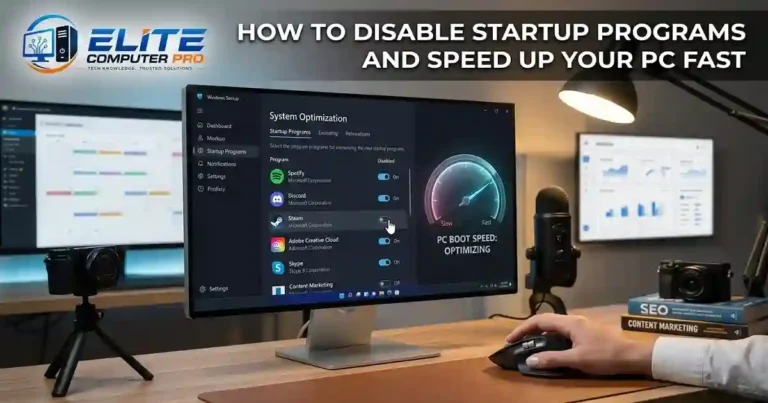
Remove Startup Apps to Speed Up Boot Time
Too many startup apps slow down Windows 11.
How to Disable Startup Apps
- Press Ctrl + Shift + Esc
- Open Task Manager
- Click Startup Apps
- Disable unnecessary programs
Apps you can usually disable safely include:
- Spotify
- Discord
- Zoom
- Adobe updater
- Game launchers
This can noticeably improve startup speed.
Hidden Windows 11 Keyboard Shortcuts That Save Time
Keyboard shortcuts make everyday tasks much faster.
Useful Shortcuts
| Shortcut | Function |
|---|---|
| Windows + V | Open clipboard history |
| Windows + D | Show desktop |
| Windows + Shift + S | Take screenshot |
| Windows + Tab | Open Task View |
| Windows + L | Lock PC |
| Alt + Tab | Switch apps |
| Windows + E | Open File Explorer |
Using shortcuts daily can save several minutes every hour.
How to Improve Windows 11 Performance
Turn Off Visual Effects
Animations and effects consume system resources.
Steps
- Search “Advanced System Settings”
- Open Performance Settings
- Select “Adjust for best performance”
This is especially useful for older laptops with limited RAM.
Free Up Storage Space
Low storage slows down performance.
Use Storage Sense
- Open Settings
- Go to System > Storage
- Enable Storage Sense
Windows automatically removes temporary files and empty recycle bin data.
Update Drivers Regularly
Updated drivers improve stability and performance.
Important Drivers to Update
- Graphics drivers
- Wi-Fi drivers
- Audio drivers
- Chipset drivers
Tools commonly used:
- Intel Driver Support Assistant
- NVIDIA GeForce Experience
- AMD Adrenalin Software
Windows 11 Gaming Tips and Tricks
Windows 11 includes several gaming improvements.
Enable Game Mode
Game Mode helps prioritize system resources for gaming.
Steps
- Open Settings
- Go to Gaming
- Open Game Mode
- Turn it On
Benefits:
- Better FPS stability
- Reduced background activity
- Improved gaming performance
Use Xbox Game Bar
Xbox Game Bar allows:
- Screen recording
- FPS monitoring
- Voice chat
- Performance tracking
Shortcut
Press Windows + G
This feature is useful for gamers and content creators.
Enable Hardware Accelerated GPU Scheduling
This can reduce latency in supported systems.
Steps
- Open Settings
- System > Display
- Graphics Settings
- Enable Hardware Accelerated GPU Scheduling
Best for:
- Gaming PCs
- Video editing systems
- High-refresh-rate monitors
Best Windows 11 Tips for Laptop Battery Life
Battery life matters for students and remote workers.
Lower Screen Brightness
The display consumes a large amount of battery power.
Reducing brightness slightly can improve battery life significantly.
Use Battery Saver Mode
Steps
- Open Settings
- System > Power & Battery
- Enable Battery Saver
This limits background activity and improves battery backup.
Change Power Mode
Choose the correct power mode based on usage.
Options
- Best Power Efficiency
- Balanced
- Best Performance
For daily tasks, Balanced mode is usually the best option.
Customize Windows 11 Like a Pro
Personalize the Taskbar
You can remove unnecessary icons from the taskbar.
Remove Icons Like
- Widgets
- Chat
- Search button
- Task View
This creates a cleaner workspace.
Use Virtual Desktops
Virtual desktops help organize work.
Example
- Desktop 1 for office work
- Desktop 2 for gaming
- Desktop 3 for study
Shortcut
Windows + Ctrl + D
This creates a new virtual desktop instantly.
Change Themes and Wallpapers
Windows 11 supports custom themes and wallpapers.
Popular wallpaper apps include:
- Wallpaper Engine
- Unsplash
- Bing Wallpaper
A personalized setup can make your workspace feel more comfortable.
Useful Built-In Windows 11 Tools
Snipping Tool
The Snipping Tool makes screenshots easy.
You can:
- Capture part of the screen
- Annotate screenshots
- Save images quickly
Great for tutorials and office work.
Focus Sessions
Focus Sessions help reduce distractions.
Features include:
- Timer
- Spotify integration
- Task tracking
Useful for students and freelancers.
Voice Typing
Windows 11 supports voice typing.
Shortcut
Windows + H
This feature converts speech into text.
Helpful for:
- Fast note taking
- Accessibility
- Writing emails
Windows 11 Security Tips
Enable Windows Security
Windows Security provides built-in protection.
Features Include
- Virus protection
- Firewall
- Device security
- Ransomware protection
Always keep it enabled.
Use Strong Passwords
Avoid weak passwords like:
- 123456
- password
- admin
Use:
- Uppercase letters
- Numbers
- Symbols
Password managers like Bitwarden and 1Password can help.
Turn On Two-Factor Authentication
If you use a Microsoft account, enable 2FA for better security.
This adds extra protection against hacking attempts.
Best Windows 11 Settings for Students
Students can improve productivity with a few adjustments.
Recommended Setup
- Use OneNote for notes
- Enable Focus Sessions during study
- Organize files using folders
- Use Edge Collections for research
Use Cloud Storage
Cloud storage prevents data loss.
Popular options:
- OneDrive
- Google Drive
- Dropbox
OneDrive integrates directly with Windows 11.
Windows 11 Tips for Office Users
Office workers can improve efficiency using built-in features.
Recommended Apps
- Microsoft Word
- Excel
- Teams
- Outlook
- PowerToys
Install Microsoft PowerToys
PowerToys adds advanced features.
Useful tools include:
- FancyZones
- Color Picker
- File Locksmith
- Keyboard Manager
Power users love this tool because it improves workflow significantly.
One Real Experience With Windows 11 Optimization
A small computer shop upgraded an older office laptop from Windows 10 to Windows 11. Initially, the laptop felt slow because too many apps launched at startup.
After disabling startup apps, enabling Storage Sense, and switching power settings to Balanced mode, boot time improved noticeably. The user also started using Snap Layouts for multitasking during office work.
The laptop became much easier to use without needing hardware upgrades.
Common Windows 11 Problems and Quick Fixes
Slow Performance
Fixes
- Remove startup apps
- Free storage space
- Update drivers
- Restart regularly
Wi-Fi Disconnecting
Solutions
- Update network drivers
- Restart router
- Disable power-saving for Wi-Fi adapter
Windows Update Errors
Fixes
- Run Windows Update Troubleshooter
- Restart PC
- Clear temporary update files
Step-by-Step Guide to Make Windows 11 Faster
Quick Optimization Checklist
Step 1
Disable unnecessary startup apps
Step 2
Delete temporary files
Step 3
Update graphics drivers
Step 4
Enable Storage Sense
Step 5
Use Balanced power mode
Step 6
Restart your computer weekly
Step 7
Keep at least 20% storage free
Following these steps regularly keeps Windows 11 running smoothly.
Keywords Related to Windows 11 Tips and Tricks
This article covers related search queries such as:
- Windows 11 optimization
- Windows 11 performance tips
- Windows 11 hidden features
- Speed up Windows 11
- Windows 11 multitasking tips
- Windows 11 gaming settings
- Windows 11 battery saving tips
- Windows 11 keyboard shortcuts
- Windows 11 customization
- Windows 11 productivity tools
Frequently Asked Questions About Windows 11 Tips and Tricks
How can I make Windows 11 faster?
You can make Windows 11 faster by disabling startup apps, freeing storage space, updating drivers, and reducing visual effects.
Does Windows 11 improve gaming performance?
Yes. Windows 11 includes Game Mode, DirectStorage support, and better GPU management for smoother gaming performance.
Which Windows 11 feature is best for multitasking?
Snap Layouts is one of the best multitasking features because it helps organize multiple windows quickly.
Is Windows 11 good for older laptops?
Yes, but performance depends on hardware specifications. Optimizing settings can improve speed on older devices.
How do I improve battery life in Windows 11?
Lower screen brightness, enable Battery Saver mode, and close unnecessary background apps.
What is the best free optimization tool for Windows 11?
Microsoft PowerToys is one of the best free tools for productivity and workflow improvements.
Should I disable startup apps in Windows 11?
Yes. Disabling unnecessary startup apps can significantly improve boot speed and overall performance.
Conclusion
Windows 11 offers far more features than most people realize. Small changes like managing startup apps, using Snap Layouts, enabling Game Mode, and organizing virtual desktops can improve both speed and productivity.
The best part is that most of these improvements do not require expensive hardware upgrades or technical skills.
By applying these Windows 11 tips and tricks, you can create a faster, cleaner, and more enjoyable computer experience for work, study, gaming, and everyday use.
source article: Windows 11 features & tips
Related: