Introduction
Microsoft Word is one of the most popular document editing programs in the world. Students, teachers, office workers, freelancers, and business owners use it every day to create documents, reports, resumes, letters, assignments, and professional files.
If you are new to Microsoft Word or want to improve your skills, this MS Word tutorial will help you learn everything in a simple and practical way.
You do not need advanced computer knowledge to start. This guide explains Microsoft Word using easy English, short steps, and real examples so beginners can learn quickly.
By the end of this tutorial, you will know how to:
- Create and save documents
- Format text professionally
- Insert images and tables
- Use page layouts
- Apply shortcuts
- Create resumes and reports
- Print and share documents
- Work faster with MS Word tools
This guide is useful for:
- Students
- Office workers
- Teachers
- Bloggers
- Freelancers
- Small business owners
- Beginners learning computer basics
Table of Contents
What is Microsoft Word?
Microsoft Word is a word processing software developed by Microsoft. It allows users to create, edit, format, and print documents.
MS Word is part of the Microsoft Office package and is also included in Microsoft 365.
People use Word for many tasks such as:
- Writing assignments
- Creating resumes
- Designing reports
- Making letters
- Preparing office documents
- Writing books and articles
Why MS Word is Important
Microsoft Word is widely used in schools, colleges, offices, and businesses. Learning it can improve your productivity and job opportunities.
Benefits of Learning MS Word
Easy Document Creation
You can quickly create professional-looking documents.
Saves Time
Built-in templates and shortcuts help complete work faster.
Professional Formatting
Word provides tools for fonts, colors, spacing, tables, and layouts.
Useful for Jobs and Education
Many companies require basic MS Word knowledge.
Cloud Integration
You can save files online using OneDrive.
How to Install Microsoft Word
Method 1: Install Using Microsoft 365
- Visit the official Microsoft website https://support.microsoft.com
- Sign in with your Microsoft account
- Purchase or activate Microsoft 365
- Download the installer
- Install Microsoft Word
Method 2: Use Free Online Version
You can also use the browser based version called Word Online.
This works on:
- Windows
- Mac
- Chromebook
- Android
- iPhone
Understanding the MS Word Interface
When you open Microsoft Word, you will see several sections.
Title Bar
The title bar shows the document name.

Ribbon
The ribbon contains all major tools and tabs.

Common tabs include:
- Home
- Insert
- Design
- Layout
- References
- Review
- View
Quick Access Toolbar
This area contains quick buttons like:
- Save
- Undo
- Redo
Document Area
This is the main workspace where you type text.
Status Bar
The status bar shows:
- Page number
- Word count
- Language
- Zoom level
How to Create a New Document
Creating a new document is simple.
Steps to Create a Document
- Open Microsoft Word
- Click “Blank Document”
- Start typing
You can also choose templates for:
- Resumes
- Reports
- Invitations
- Business letters
How to Save a Document
Saving files protects your work.
Steps to Save a File
- Click File
- Select Save As
- Choose location
- Enter file name
- Click Save
Popular File Formats
- DOCX
- TXT
Basic Text Formatting in MS Word
Formatting makes documents attractive and easier to read.
Change Font Style
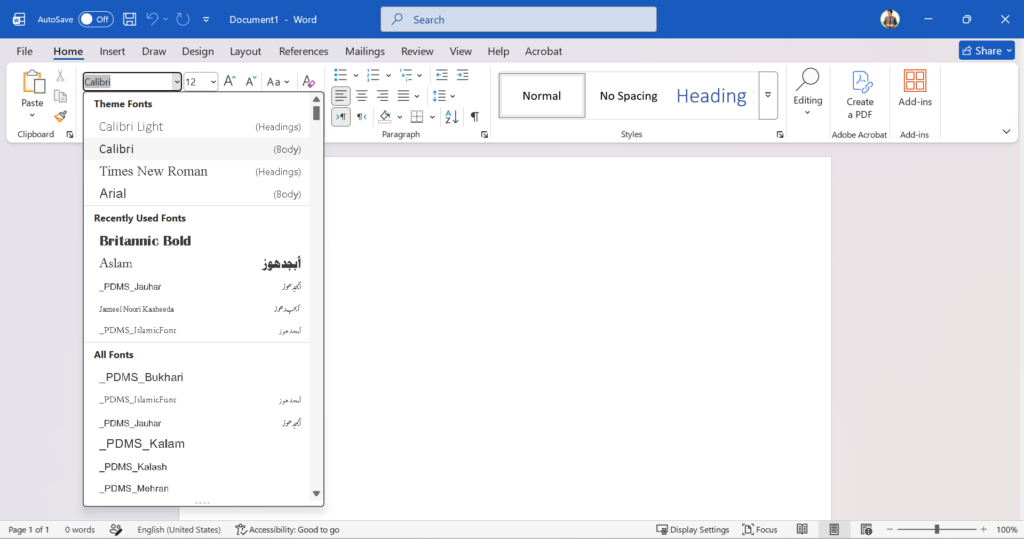
You can select fonts like:
- Arial
- Times New Roman
- Calibri
- and much more…
Change Font Size
Increase or decrease text size based on your needs.
Bold, Italic, and Underline
These options help highlight important text.
Shortcut Keys
- Bold: Ctrl + B
- Italic: Ctrl + I
- Underline: Ctrl + U
Paragraph Formatting in MS Word
Paragraph formatting improves readability.
Alignment Options
- Left Align
- Center Align
- Right Align
- Justify
Line Spacing
Proper spacing makes documents cleaner.
Common options:
- 1.0
- 1.5
- 2.0
Bullets and Numbering
Use bullets for lists and numbering for steps.
Example:
- Open Word
- Create document
- Save file
How to Insert Images in MS Word
Images make documents more engaging.
Steps to Insert an Image
- Click Insert tab
- Select Pictures
- Choose image
- Click Insert
Image Editing Features
You can:
- Resize images
- Crop pictures
- Add borders
- Apply effects
How to Insert Tables in MS Word
Tables organize information clearly.
Steps to Add a Table
- Click Insert
- Select Table
- Choose rows and columns
Where Tables are Useful
- Student records
- Price lists
- Office reports
- Schedules
Using Headers and Footers
Headers and footers appear at the top and bottom of pages.
They can include:
- Page numbers
- Dates
- Document title
- Company name
Steps to Add Header or Footer
- Click Insert
- Select Header or Footer
- Choose style
- Add text
How to Add Page Numbers
Page numbers help organize long documents.
Steps
- Open Insert tab
- Click Page Number
- Select position
Working with Page Layout
Page layout controls the appearance of documents.
Common Layout Features
Margins
Controls page spacing.
Orientation
- Portrait
- Landscape
Page Size
Common sizes include:
- A4
- Letter
Spell Check and Grammar Tools
Microsoft Word helps correct mistakes automatically.
Features Included
- Spell checker
- Grammar suggestions
- AutoCorrect
Why This Matters
It improves:
- Writing quality
- Professional appearance
- Accuracy
Find and Replace Feature
This feature saves time when editing large documents.
Example
You can replace every “2025” with “2026” instantly.
Steps
- Press Ctrl + H
- Enter old word
- Enter new word
- Click Replace All
Useful Keyboard Shortcuts in MS Word
| Shortcut | Function |
| Ctrl + C | Copy |
| Ctrl + V | Paste |
| Ctrl + X | Cut |
| Ctrl + S | Save |
| Ctrl + Z | Undo |
| Ctrl + P | Print |
| Ctrl + A | Select All |
How to Create a Resume in MS Word
Microsoft Word includes resume templates.
Steps
- Open Word
- Search “Resume”
- Select template
- Edit information
Important Resume Sections
- Name
- Skills
- Education
- Experience
- Contact details
How Students Use MS Word
Students commonly use Word for:
- Assignments
- Notes
- Research papers
- Presentations
- Project reports
Helpful Student Features
- Word count
- References
- Tables
- Headings
- Spell check
Real Practical Scenario
A college student preparing a final year project used Microsoft Word to create a complete report with headings, page numbers, images, and tables. Instead of writing everything manually, Word tools helped organize the report professionally and saved several hours of editing time.
This is one reason why MS Word skills are valuable for both education and office work.
How Office Workers Use Microsoft Word
Office employees use Word daily for:
- Official letters
- Business proposals
- Meeting notes
- Reports
- Documentation
Popular Business Features
- Templates
- Track Changes
- Comments
- PDF export
Understanding Track Changes
Track Changes helps teams edit documents together.
Benefits
- Shows edits clearly
- Helps reviewers check changes
- Useful for collaborative work
Steps to Enable
- Open Review tab
- Click Track Changes
How to Convert Word Files to PDF
PDF files are easier to share and print.
Steps
- Click File
- Select Save As
- Choose PDF format
- Save
Printing Documents in MS Word
Steps to Print
- Press Ctrl + P
- Select printer
- Choose settings
- Click Print
Print Settings
You can adjust:
- Page size
- Orientation
- Color mode
- Number of copies
MS Word Online vs Desktop Version
Word Online
Advantages
- Free to use
- Accessible anywhere
- Cloud saving
Limitations
- Fewer advanced features
Desktop Version
Advantages
- More powerful tools
- Offline access
- Better formatting options
Common MS Word Mistakes to Avoid
Using Too Many Fonts
Keep documents simple and professional.
Forgetting to Save
Save your work regularly.
Poor Formatting
Use consistent headings and spacing.
Ignoring Spell Check
Always review grammar and spelling.
Best Tips to Learn MS Word Faster
Practice Daily
Even 20 minutes daily improves skills.
Use Templates
Templates teach professional formatting.
Learn Shortcuts
Keyboard shortcuts save time.
Watch Tutorials
Video lessons can improve understanding.
Create Real Documents
Practice with assignments, resumes, or reports.
Advanced Features Worth Exploring
After learning basics, explore advanced tools.
Smart Art
Creates visual diagrams.
Mail Merge
Useful for bulk letters and certificates.
References and Citations
Helpful for academic writing.
Macros
Automates repetitive tasks.
Related Tools Similar to Microsoft Word
Some alternatives include:
- Google Docs
- LibreOffice Writer
- WPS Office
Each tool offers document editing features, but Microsoft Word remains one of the most widely used platforms worldwide.
Frequently Asked Questions About MS Word Tutorial
What is MS Word used for?
MS Word is used for creating, editing, formatting, and printing documents such as reports, assignments, resumes, and letters.
Is Microsoft Word free?
Microsoft Word Online offers a free version with basic features. The desktop version usually requires a subscription or license.
Can beginners learn MS Word easily?
Yes. Beginners can learn Microsoft Word quickly by practicing basic tools like typing, formatting, and document saving.
What is the shortcut to save a Word document?
Press Ctrl + S to save your document instantly.
Which version of Microsoft Word is best?
The latest version of Microsoft 365 provides updated tools, cloud storage, and better collaboration features.
Can I use MS Word on mobile devices?
Yes. Microsoft Word is available for Android and iPhone devices.
What is the difference between Word and Google Docs?
Microsoft Word has more advanced formatting tools, while Google Docs focuses on online collaboration.
How long does it take to learn MS Word?
Most beginners can learn basic MS Word skills within a few days of practice.
Conclusion
Microsoft Word is one of the most useful computer applications for students, professionals, and businesses. Learning it can improve productivity, document quality, and professional skills.
The best way to master MS Word is through regular practice. Start with simple tasks like typing and formatting, then slowly explore advanced tools such as tables, page layouts, templates, and Track Changes.
Even basic Microsoft Word skills can help with education, office work, freelancing, and personal projects. Once you understand the core features, creating professional documents becomes much easier and faster.
Source: How to Download MS Word (Microsoft Office)
Learn about MS Excel
Related: