
Introduction
Microsoft MS Excel is one of the most useful computer applications for students, office workers, freelancers, accountants, teachers, and business owners. From creating simple tables to managing large business reports, MS Excel helps users organize and analyze data quickly.
Many people think MS Excel is difficult to learn. The truth is that once you understand the basics, it becomes simple and enjoyable. You do not need advanced technical knowledge to start using spreadsheets effectively.
This MS Excel tutorial is designed for beginners who want to learn Excel step by step in simple English. You will learn about rows, columns, formulas, functions, charts, formatting, data analysis, and practical tips that can help in daily work.
Whether you want to manage expenses, create reports, track student records, or analyze business data, this guide will help you understand MS Excel easily.
Table of Contents
What is MS Excel?
Microsoft Excel is a spreadsheet application developed by Microsoft. It is part of the Microsoft Office package.
MS Excel allows users to:
- Store data in tables
- Perform calculations
- Create charts and graphs
- Analyze information
- Generate reports
- Automate tasks with formulas
Ms Excel is widely used in:
- Offices
- Schools and colleges
- Banks
- Shops and businesses
- Freelancing projects
- Data analysis work
Why Learning MS Excel is Important
MS Excel skills are valuable in almost every industry. Many companies require employees to understand spreadsheets and basic data handling.
Benefits of Learning MS Excel
- Saves time during calculations
- Improves data organization
- Helps create professional reports
- Makes budgeting easier
- Supports business decision-making
- Increases job opportunities
Even small businesses use Excel for inventory management, sales tracking, and employee records.
>>>> Read Also <<<<
Best HR Tools for Workforce Management and Team Growth
Marketing Tools Directory A to Z for Business Growth Guide
MS Word Tutorial 2026 Beginner to Advanced Guide
Getting Started with Microsoft Excel
How to Open Excel
You can use Excel on:
- Windows PC
- MacBook
- Android devices
- iPhone and iPad
- Web browser using Microsoft 365
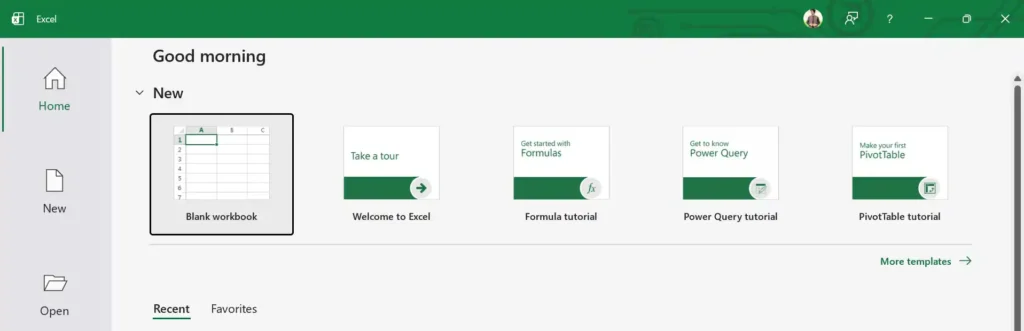
Steps to Open Excel on Windows
- Click the Start menu
- Search for “Excel”
- Open Microsoft Excel
- Choose a blank workbook
A workbook is the Excel file where you work with spreadsheets.
Understanding the Excel Interface
When you open Excel, you will see different sections.
Workbook
A workbook is the main Excel file.
Worksheet
Each workbook contains worksheets or sheets where data is entered.
Rows and Columns
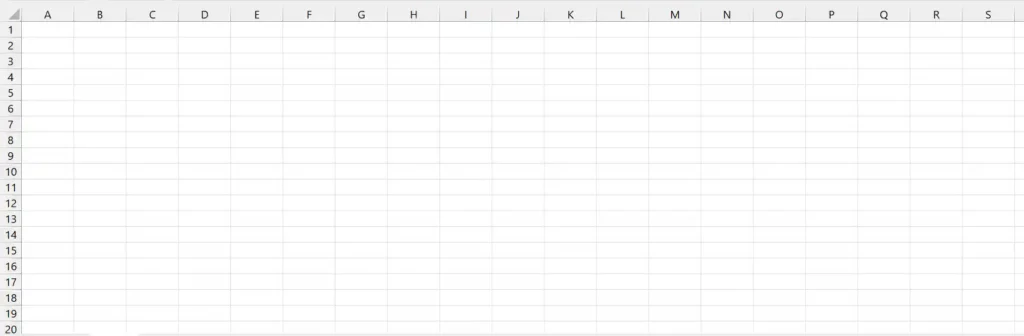
- Rows run horizontally
- Columns run vertically
The combination of a row and column creates a cell.
Cell
A cell is where you enter data.
Example:
- A1
- B5
- D10
Types of Data in Excel
Excel supports different types of data.
Text
Example:
- Student Name
- Product Name
Numbers
Example:
- 500
- 2500
Dates
Example:
- 12/05/2026
Formulas
Example:
=SUM(A1:A10)
How to Enter Data in Excel
Step-by-Step Guide
- Click on a cell
- Type your data
- Press Enter
You can edit data anytime by double-clicking the cell.
Basic Excel Formatting
Formatting improves the appearance of spreadsheets.
Common Formatting Options
- Bold text
- Font size change
- Text color
- Cell background color
- Borders
- Alignment
How to Format Cells
- Select the cells
- Go to the Home tab
- Choose formatting options
Proper formatting makes reports easier to read.
Understanding Excel Formulas
Formulas are one of the most powerful features in Excel.
A formula always starts with an equal sign (=).
Simple Formula Example
=A1+B1This formula adds values from two cells.
Important Excel Functions for Beginners
Functions help perform calculations automatically.
SUM Function
Adds numbers together.
=SUM(A1:A10)AVERAGE Function
Calculates average values.
=AVERAGE(A1:A10)COUNT Function
Counts cells containing numbers.
=COUNT(A1:A10)MAX Function
Finds the highest value.
=MAX(A1:A10)MIN Function
Finds the smallest value.
=MIN(A1:A10)Practical Example of Excel Usage
A small shop owner used Excel to track monthly sales and expenses instead of writing records in a notebook. Within a few weeks, it became easier to identify profit trends, calculate stock needs, and prepare simple reports for suppliers. This reduced calculation mistakes and saved hours of manual work every month.
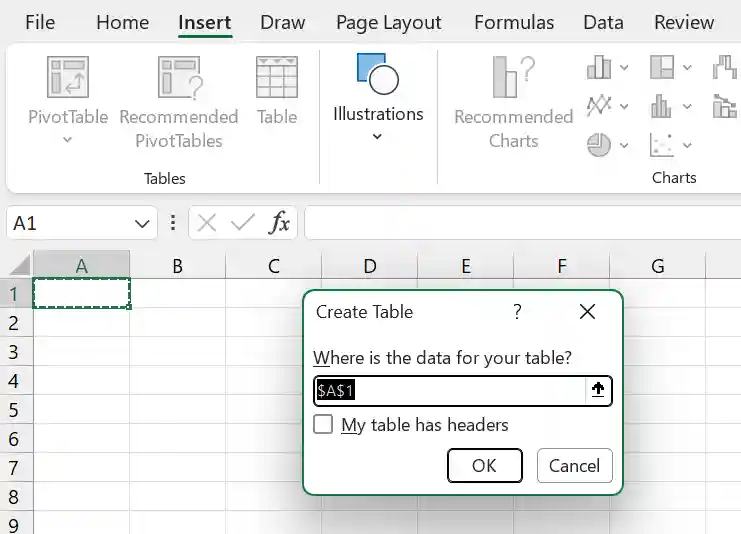
Creating Tables in Excel
Tables help organize data professionally.
Steps to Create a Table
- Select your data
- Click Insert
- Choose Table
- Confirm the range
Benefits of tables:
- Easy sorting
- Automatic formatting
- Better filtering
- Improved readability
Sorting and Filtering Data
Sorting helps arrange data alphabetically or numerically.
Sorting Example
You can sort:
- Student marks
- Product prices
- Employee salaries
Filtering Data
Filtering shows only selected information.
Example:
Show only products above 5000 rupees.
Using Charts in Excel
Charts convert numbers into visuals.
Popular Chart Types
- Bar chart
- Pie chart
- Line chart
- Column chart
Steps to Create a Chart
- Select data
- Click Insert
- Choose a chart type
Charts are useful for reports and presentations.
Conditional Formatting in Excel
Conditional formatting highlights important data automatically.
Examples
- Highlight low marks in red
- Show high sales in green
- Detect duplicate values
How to Apply Conditional Formatting
- Select cells
- Go to Home
- Click Conditional Formatting
- Choose a rule
Excel Shortcuts That Save Time
Keyboard shortcuts improve productivity.
Useful Excel Shortcuts
| Shortcut | Function |
|---|---|
| Ctrl + C | Copy |
| Ctrl + V | Paste |
| Ctrl + Z | Undo |
| Ctrl + S | Save |
| Ctrl + A | Select all |
| Ctrl + B | Bold text |
Learning shortcuts can speed up your work significantly.
How to Save an Excel File
Steps to Save
- Click File
- Choose Save As
- Select folder
- Enter file name
- Click Save
Excel files usually use the .xlsx format.
Excel for Students
Students can use Excel for:
- Attendance sheets
- Assignment tracking
- Marks calculation
- Budget planning
- Study schedules
Excel makes academic management easier.
Excel for Business Owners
Business owners use Excel to manage:
- Sales reports
- Employee records
- Expenses
- Profit calculations
- Inventory tracking
Even small businesses benefit from simple spreadsheets.
Difference Between Excel and Google Sheets
Google Sheets is another spreadsheet tool.
Excel vs Google Sheets
| Feature | Excel | Google Sheets |
|---|---|---|
| Offline Use | Yes | Limited |
| Advanced Features | More powerful | Simpler |
| Cloud Collaboration | Available | Excellent |
| Best For | Advanced work | Team collaboration |
Many professionals use both tools depending on the project.
Common Excel Mistakes Beginners Make
1. Not Saving Files Frequently
Always save your work regularly.
2. Incorrect Formula References
Double-check cell references.
3. Mixing Text and Numbers
Keep data properly organized.
4. Ignoring Formatting
Messy spreadsheets become difficult to understand.
Tips to Learn Excel Faster
Practice Daily
Even 20 minutes daily helps improve skills.
Work on Real Projects
Try:
- Expense sheets
- Student records
- Business reports
Learn Keyboard Shortcuts
Shortcuts save time and improve efficiency.
Watch Tutorials
Platforms like:
offer helpful Excel lessons.
Advanced Excel Features to Explore Later
Once you understand the basics, you can learn advanced features.
Pivot Tables
Used for summarizing large data.
VLOOKUP
Helps find specific information in tables.
Data Validation
Controls what users can enter.
Macros
Automates repetitive tasks.
Power Query
Used for data cleaning and transformation.
Best Devices for Using Excel
Excel works best on:
- Desktop computers
- Laptops
- Tablets
For heavy spreadsheets, a laptop with:
- 8GB RAM
- SSD storage
- Modern processor
provides smoother performance.
Cloud Storage for Excel Files
You can store Excel files online using:
Cloud storage helps prevent data loss.
How Excel Helps in Freelancing
Freelancers use Excel for:
- Invoice management
- Client tracking
- Earnings reports
- Project planning
Excel is especially useful for virtual assistants, accountants, and online sellers.
Voice Search Friendly Questions About Excel
People often search using voice assistants like Google Assistant or Siri.
Here are common voice search queries:
- What is MS Excel used for?
- How do I learn Excel step by step?
- Which Excel formulas should beginners learn?
- How can I create charts in Excel?
- Is Microsoft Excel free to use?
Step by Step Beginner Practice Exercise
Try this simple exercise.
Create a Monthly Expense Sheet
Step 1: Open Excel
Create a blank workbook.
Step 2: Add Headings
Type:
- Date
- Item
- Category
- Amount
Step 3: Enter Expenses
Add daily expenses.
Step 4: Use SUM Formula
Calculate total expenses.
=SUM(D2:D20)Step 5: Create a Pie Chart
Show expense categories visually.
This simple project helps beginners understand real Excel usage.
Frequently Asked Questions About MS Excel
What is MS Excel mainly used for?
MS Excel is used for organizing data, performing calculations, creating reports, managing records, and analyzing information.
Is Excel difficult for beginners?
No. Excel becomes easy when you learn basic functions, formatting, and formulas step by step.
Can I use Excel for free?
Yes. You can use limited free versions through Excel Online.
Which Excel formulas should beginners learn first?
Beginners should learn:
- SUM
- AVERAGE
- COUNT
- MAX
- MIN
These formulas are commonly used in everyday tasks.
What is the difference between a workbook and worksheet?
A workbook is the complete Excel file, while a worksheet is an individual sheet inside the workbook.
Can Excel be used on mobile phones?
Yes. Microsoft Excel is available for Android and iPhone devices.
How long does it take to learn Excel?
Basic Excel skills can be learned within a few weeks through regular practice.
Is Excel useful for jobs?
Yes. Excel skills are highly valuable for office jobs, accounting, business management, and freelancing work.
Summary
Learning Excel is one of the smartest skills for students, professionals, freelancers, and business owners. It helps organize information, reduce manual work, and improve productivity in everyday tasks.
You do not need to master advanced formulas immediately. Start with basic spreadsheets, simple calculations, and formatting. Practice regularly and gradually explore advanced tools like Pivot Tables and data analysis features.
With consistent learning and real practice, Excel can become an essential tool for managing work, studies, and business operations more efficiently.
Source: How to Download MS Excel (Microsoft Excel)
Related: